Until now, the money sat outside QuickCoach. You wrote the plan in the app, then chased payment by bank transfer, PayPal or a note to yourself about who still owed what. QuickCoach Client Billing brings that inside, if you want it there.
Client Billing lets you charge your clients for coaching from inside QuickCoach. You connect your own Stripe account, set up your packages once, and send each client a secure link to pay by card. Stripe takes the payment and pays it out to your bank. It's available on every plan, and if you'd rather keep billing the way you do now, nothing changes.
Quick answer
Client Billing lets QuickCoach coaches charge clients by card through their own Stripe account, using one-off or recurring packages and a link sent from the client's profile. It's optional and works on Free and Pro. QuickCoach's fee is 12.5% of each payment on Free or 3.5% on Pro, plus Stripe's processing fee.
How Client Billing Works
You do the setup once. Switch on Client Billing in Account Settings, connect a Stripe account, and let Stripe check your identity and bank details, which usually takes less than a day. Then create your packages. From there, charging a client is a link from their profile.
Stripe handles the money. It hosts the secure checkout page your client pays on, keeps their card, pays out to your bank on your payout schedule, and deals with disputes and tax forms. QuickCoach never sees or stores your clients' card details. Your Stripe account is a standard one that belongs to you, with its own Stripe Dashboard.
QuickCoach looks after the coaching side: your packages, the payment links you send, a record of who has paid, refunds and cancellations from a client's profile, and an email when a payment comes in.
What Client Billing Costs on Free and Pro
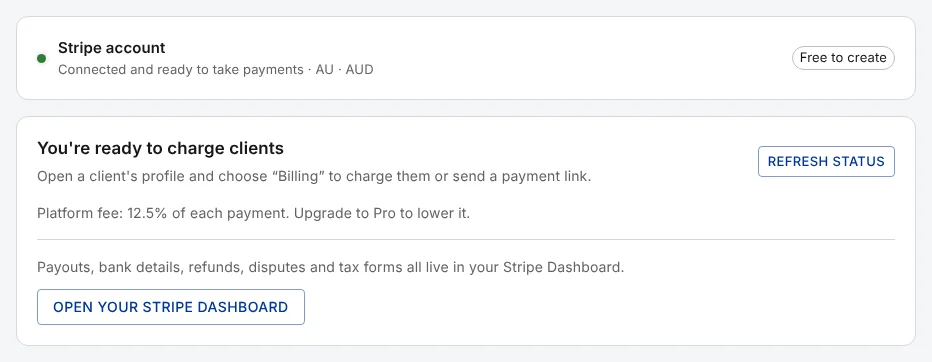
There's no monthly charge for Client Billing, and creating the Stripe account is free. Each payment a client makes carries two fees. QuickCoach's platform fee is 12.5% of each payment on Free or 3.5% on Pro, and Stripe's processing fee is Stripe's card rate for your country.
| Fee | On Free | On Pro |
|---|---|---|
| QuickCoach platform fee | 12.5% of each payment | 3.5% of each payment |
| Stripe's processing fee | Stripe's card rate for your country | Stripe's card rate for your country |
Stripe's fee is charged to your Stripe account, so it comes out of what Stripe pays you. QuickCoach doesn't set it or take a share of it. The rates depend on your country and your client's card, and Stripe's pricing page lists them.
Who Pays the Fees, You or Your Client
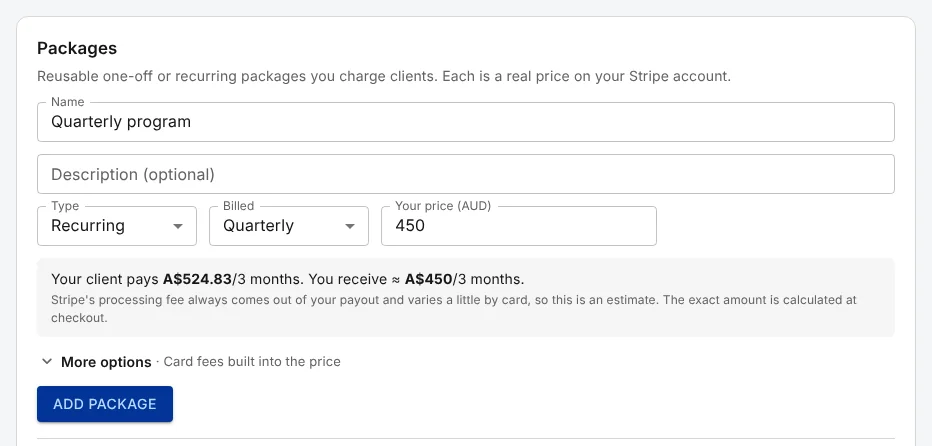
Every package has a "Card fees" choice, under "More options" when you create it. "Built into the price" is the default: your client's price is raised so that, after the QuickCoach fee and an estimate of Stripe's fee, you receive about the price you set. On Free, a package you price at A$450 costs your client A$524.83.
"Taken from your payout" works the other way. Your client pays exactly your price, and both fees come out of what you receive. Stripe's real fee varies a little from card to card, so with fees built in you can end up a few cents either side of your price.
What Happens to the Fee When You Change Plans
Upgrading to Pro lowers the platform fee from 12.5% to 3.5%, but it reaches your packages and subscriptions differently. A package's price is fixed in Stripe when you create it, so a one-off package charges the fee it was created with. After upgrading, create a new package and archive the old one to charge the Pro rate.
Subscriptions follow your plan. Each live subscription moves to your current fee from its next payment, and that works in both directions. If your Pro plan ends, subscriptions move back to 12.5% while your clients keep paying the same price, so on a "Built into the price" package you take home less than the rate you set. What else Pro includes, and what it costs, is in the QuickCoach Pro guide.
Setting Up Stripe and Your Packages
Open Account Settings, choose "Client Billing" and switch on "Enable client billing". Check the "Business location" before you go any further. Stripe locks it once your account is created, and it decides the currency you charge in: an Australian account charges in Australian dollars, for example.
Click "Set up payouts with Stripe" and finish Stripe's sign-up, where you give Stripe your details and the bank account for your payouts. Stripe's review usually takes less than 24 hours. A more complicated one can take 2 to 3 business days, and Client Billing switches on by itself when Stripe approves you. One thing to know first: Client Billing always sets up a new Stripe account for your coaching, and can't connect a Stripe account you already have.
Next come packages. A package is something you charge for, with its price. It's either one payment, such as a 12-week block, or a subscription that renews weekly, fortnightly, monthly, quarterly or yearly. Packages can't be edited, because each one is a fixed price in Stripe, so to change a price you create a new package and archive the old one.
If you're still deciding what to charge, our guide to pricing online coaching from the income you want walks through the sums, and the coaching rate calculator does them for you. The Help Center covers each screen in connecting Stripe and getting verified and creating your packages.
Charging a Client From Their Profile
You charge clients one at a time, from their profile. Open a client, click the "Billing" tile, and pick a package from "Choose a package". Click "Create subscription link" for a recurring package or "Create payment link" for a one-off one. Then send it with "Email to client", or "Copy link" and send it yourself in a text or message.
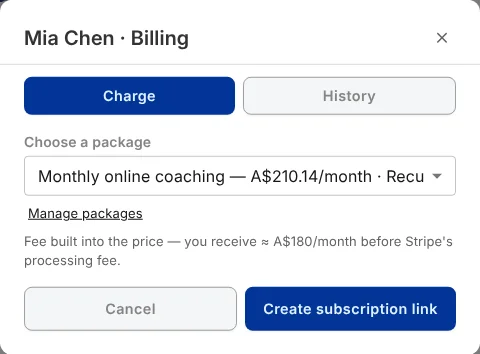
Choose a package. The note underneath shows how the fee works for that package.
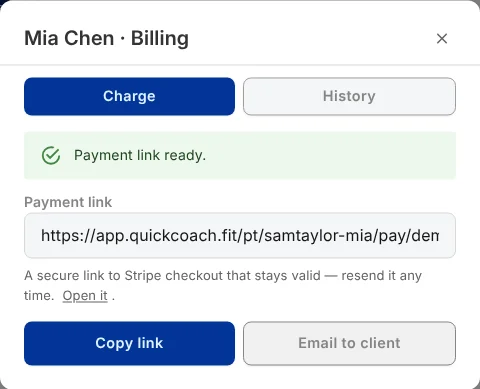
Send the link. Email it from QuickCoach, or copy it into your own message.
The link takes your client to Stripe's secure checkout. It doesn't expire, so you can send it again whenever you need to, and once it's paid, opening it again takes your client back to their QuickCoach page rather than charging them a second time.
There's no separate way to send an invoice. The link is the request for payment, and Stripe creates the invoice once it's paid. Charging a client in the Help Center has the details.
Payments, Refunds and Cancelling
Every payment shows up on the "Payments" tab in Client Billing, newest first, split into subscription and one-off payments. Each paid one has an "Invoice" or "Receipt" button that opens Stripe's copy. QuickCoach emails you when a payment comes in, and on Pro it also lands in your Notification Center and arrives as a push notification.
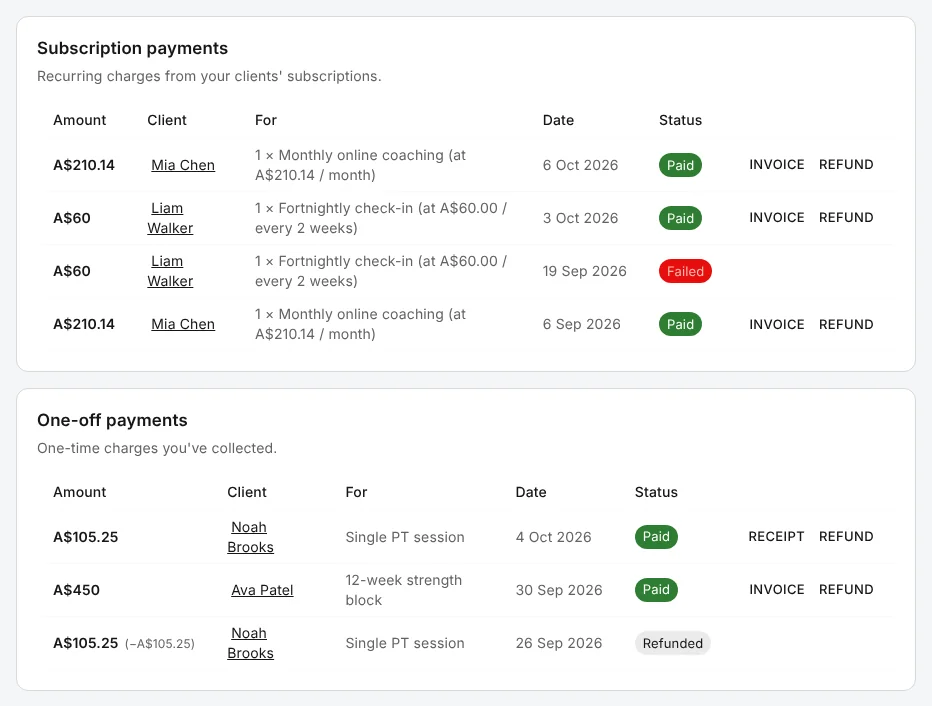
A few rules are worth knowing before you need them.
- Refunds are for the whole payment. QuickCoach keeps its platform fee, and Stripe doesn't return its processing fee either. To refund part of a payment, do it from your Stripe Dashboard.
- A refund doesn't cancel a subscription. It keeps billing unless you tick "Also cancel this subscription" before you confirm.
- Cancelling takes effect at the end of the paid period. No further payments are taken, and your client's access to their plans doesn't change. That stays in your hands.
- Failed payments don't send an alert. They show as "Failed" on the Payments tab, so check it. Disputes are handled in your Stripe Dashboard.
The full walkthrough is in payments, refunds and cancelling.
What Your Client Sees
Your client doesn't need a Stripe account or a new password to pay you. If you email the link, they get a message from "QuickCoach Payments" showing the amount, what it's for and who asked, above a "Pay securely with Stripe" button. On Pro, the email carries your app's logo instead of QuickCoach's.
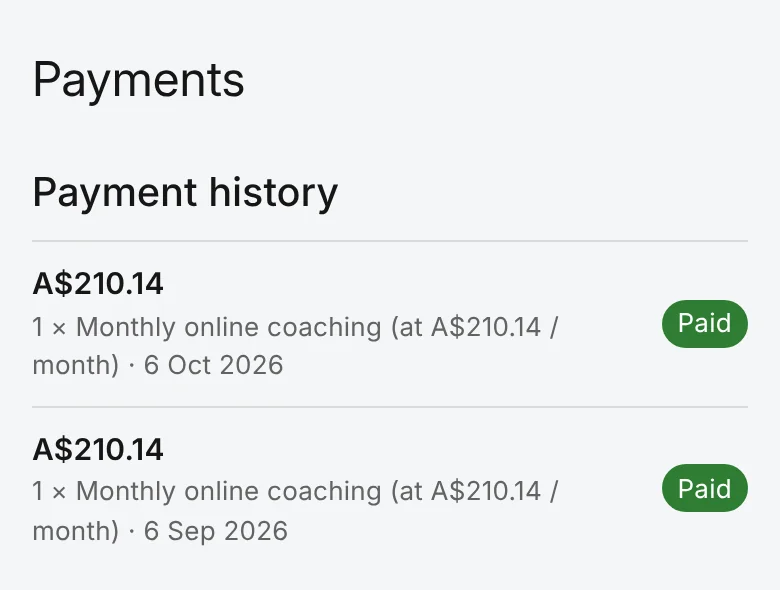
They enter their card on Stripe's checkout page, never in QuickCoach, and land back on their QuickCoach page once they've paid. After you've charged a client, a card icon appears at the top of their My Plans page. It opens their Payments page, with each payment's amount, what it was for, the date and its status.
When a client wants to stop a subscription, they ask you, and you cancel it from QuickCoach. What your client sees walks through it from their side.
When to Bill Your Own Way Instead
Client Billing is one of your payment options, not the only one, and you don't have to use it. If bank transfers, PayPal or your gym's billing system already work for you, carry on. QuickCoach charges nothing on money that doesn't go through Client Billing, and you can mix the two, with some clients paying through Client Billing and others paying you the way they do now.
It also has limits worth checking first. You can connect a Stripe account based in one of 45 countries, including Australia, New Zealand, Canada, the United Kingdom and the United States, and every package is priced in your Stripe account's currency. There are no discount codes or free trials, and QuickCoach doesn't add sales tax or GST to your prices. Each client gets their own link, so there's no single link for a whole group's buy-in.
What Client Billing is and what it costs has the full country list, and billing your clients compares the two ways side by side.
Frequently Asked Questions
Is QuickCoach Client Billing free to use?
There's no monthly charge, and creating the Stripe account is free. Each payment carries QuickCoach's platform fee, 12.5% on Free or 3.5% on Pro, plus Stripe's processing fee. If you bill clients your own way, QuickCoach takes nothing on that money.
Do I need QuickCoach Pro to use Client Billing?
No. Client Billing works on Free and Pro. The difference is the platform fee: 12.5% of each payment on Free and 3.5% on Pro, plus Stripe's processing fee on both.
Can I use the Stripe account I already have?
No. Client Billing always sets up a new Stripe account for your coaching, which you own and manage in your Stripe Dashboard.
How long does Stripe take to approve my account?
Usually less than 24 hours. A more complicated review can take 2 to 3 business days. You don't need to check back, because Client Billing switches on by itself when Stripe approves you.
Does a client lose access to their plans if they don't pay?
No. Payments don't change a client's access to their plans or the app. That stays in your hands, as it always has.
Set up the package you sell most
Switch on Client Billing in Account Settings, connect Stripe, and create one package. Send the first link to a client you know well, and ask them to tell you if anything on the way to paying was unclear.
Open your dashboardFees confirmed October 2026. Stripe's own rates are set by Stripe and vary by country and card. If anything here stops matching what you see in the app, tell us and we will correct it: support@quickcoach.fit.