
Adding new clients one at a time is the other half of the group-coaching chore. You solved sending a workout to a whole group at once when Client Groups went live, instead of sending it to each person individually, but every new member still had to be typed in by hand, name, email and phone, before they could go in the group. Run an online challenge (a 4, 8 or 12 week block), take on a sports team, or open a new bootcamp intake, and that is a lot of typing before the coaching even starts.
So we handed the typing to the client. Every client group now carries its own sign-up link, a group onboarding link you copy once and share however you like: a DM, an email, a story, or a QR code on a flyer. Whoever opens it fills in their own details and lands in your workspace, already inside that group. Clients onboard themselves, and from there you bulk assign their plans and templates the way you already do.
Quick answer
Open the client group you want people to join, copy its invite link from the bottom of the group edit screen, and share it. Anyone who opens the link enters their name, email and phone, and is created in your workspace already in that group. No plans are assigned automatically. Once they are in the group, you use the existing bulk assignment to give everyone their plans and templates at once. It is a Pro feature at $39/month.
Where the Sign-Up Link Lives
There is no new page and no new menu to learn. The link sits inside the group you already made, reached from the same Client Groups filter you use to create and filter groups. Make a group, then share it.
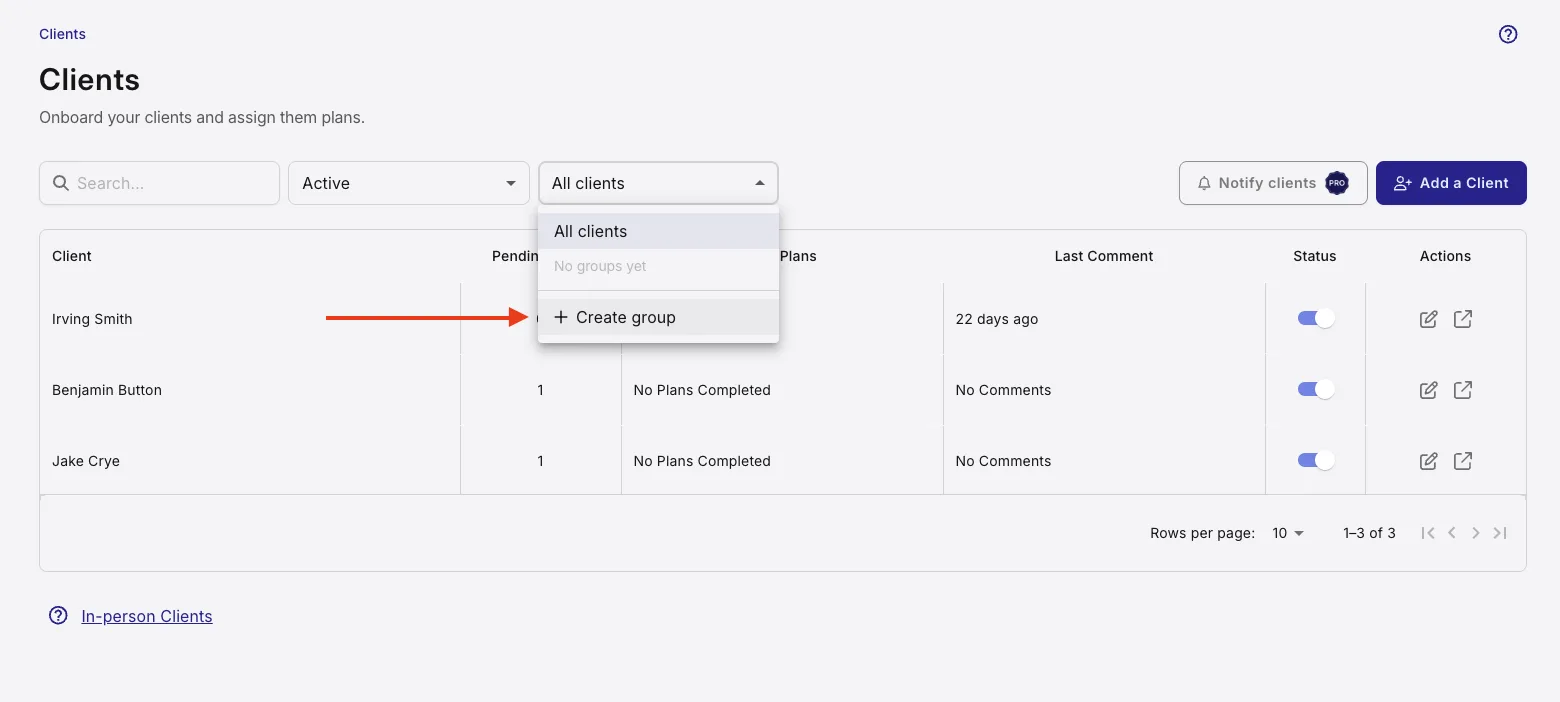
- Open Clients and open the Client Groups filter in the toolbar.
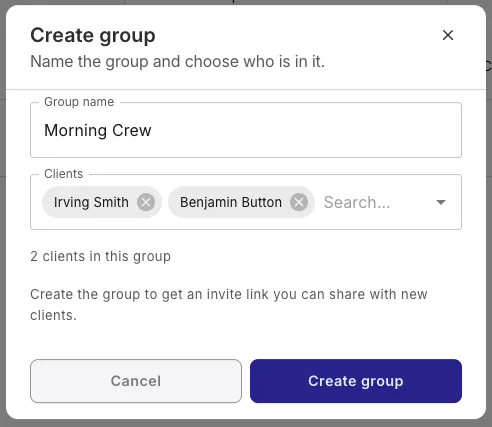
- Choose Create group, give it a name and pick who is in it.
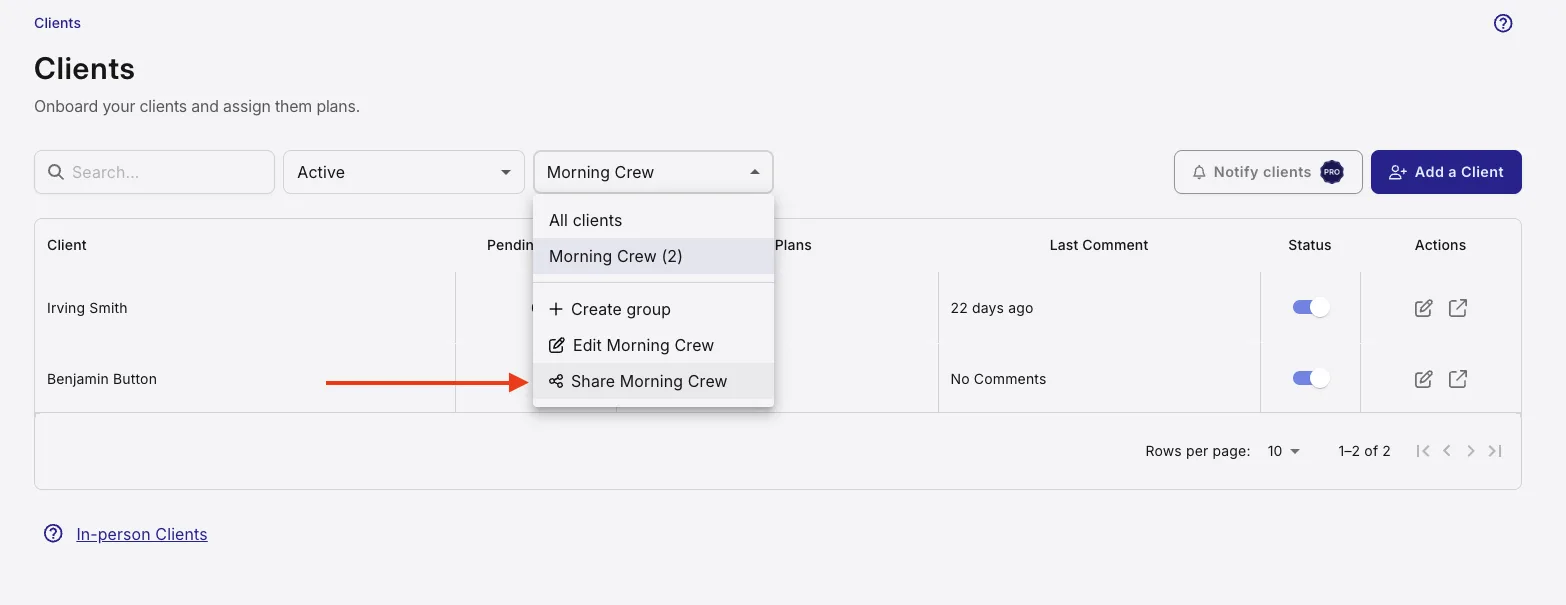
- Open the filter again and choose Share [group name].
- Choose Copy invite link.
- Paste it wherever your new clients will see it.
Your sign-up link uses a secure, random token that does not expose any private information or internal group details. It can be regenerated or disabled at any time if you want to stop self-sign-ups or invalidate a previously shared link.
What the Client Sees
Whoever opens the link gets a simple, mobile-friendly page with your name on it and the group they are joining. No app to download first, no account juggling. It asks for four things, and only three are required.
- First name
- Last name
- Email address
- Phone number (optional)
These are the same fields, the same checks and the same phone and email rules you get when you add a client yourself, so the details land clean. They tap Join group, and that is the end of their part. The page swaps to a simple confirmation: "You're all set! Your details have been sent to your coach. They'll be in touch with what comes next." They never see your dashboard, your other clients or anyone else in the group.
If someone signs up with an email that already has an account, or the link has been switched off, they get one plain message asking them to contact you, and nothing more. The form never gives away whether an email is already in use, so a public link can't be poked at to learn who your clients are.
What Happens After They Join
The moment a client submits the form, three things happen together. They are created in your workspace, added to the group the link belongs to, and you get an email letting you know.
That email lands with the subject "A new client joined [group name]" and a View client button that drops you straight onto their profile. So you find out in real time, and you are one tap from the person who just signed up. You can also have QuickCoach email the client automatically the moment they join, one of the Client Groups improvements that followed this release.
What does not happen is just as important. No plan is assigned, no template is sent, no onboarding sequence kicks off. The link's only job is to get the right person into the right group. Assigning is a separate, deliberate step you control, which is exactly how it should be. You would not want a challenge plan firing off the second someone taps a link at 11pm.
Because everyone who signs up lands in the same group, giving them their plans is the one-action job Client Groups was built for. When your intake window closes, open the group, start the bulk assign flow, and send the plan or template to the whole group at once. Ten new members or fifty, it is a single confirmation either way.
Turning a Link On, Off or Fresh
Managing the link is deliberately boring, which is what you want from something you paste in public. It stays put and it does what you expect.
- Renaming the group does not change the link. Rework the name as often as you like, anything already shared keeps working.
- You can disable a link when an intake window closes, then switch it back on for the next round.
- You can regenerate a link to get a fresh one. The old link stops working the instant you do, so a flyer that has been floating around can be retired without deleting anything.
- Deleting the group switches its link off for good. A dead group can't take sign-ups.
One more safeguard runs quietly in the background. Group self-sign-up is a Pro feature, and your Pro status is checked both when the link is opened and again when someone submits. If your Pro access lapses, every link you have shared stops accepting new clients on its own, with nothing for you to hunt down and delete. Get back on Pro and they start working again.
Write Your Own Workout Completion Message
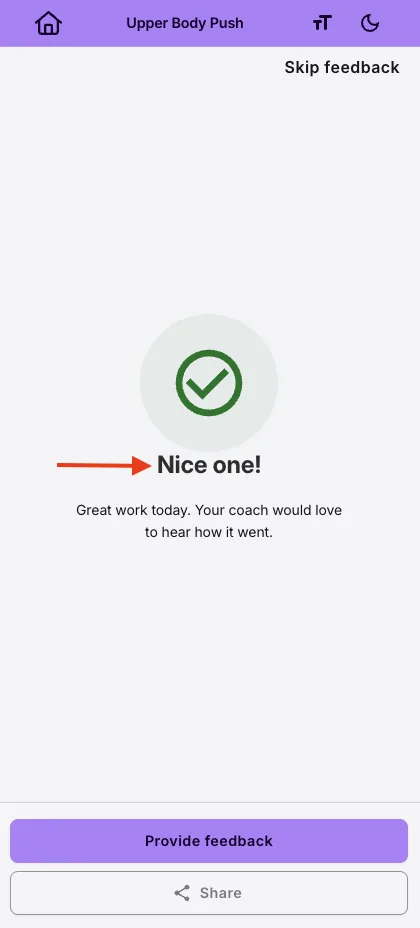
The second update in this release answers a question we kept getting: can you change the "crushed it" message a client sees when they submit a workout? Now you can. On Pro you write that line yourself.
Until now that screen showed a stock celebration line like "Crushed it!", picked at random, so the same client saw a different one every session and you had no say in the tone. One coach put it well: it can read as a little patronising and a bit soulless coming from software, and the adults he trains do not talk that way. Fair enough. Now the line is yours. Make it warm, make it plain, make it sound like you: "Nice work, that's another one banked", or just "Session done".
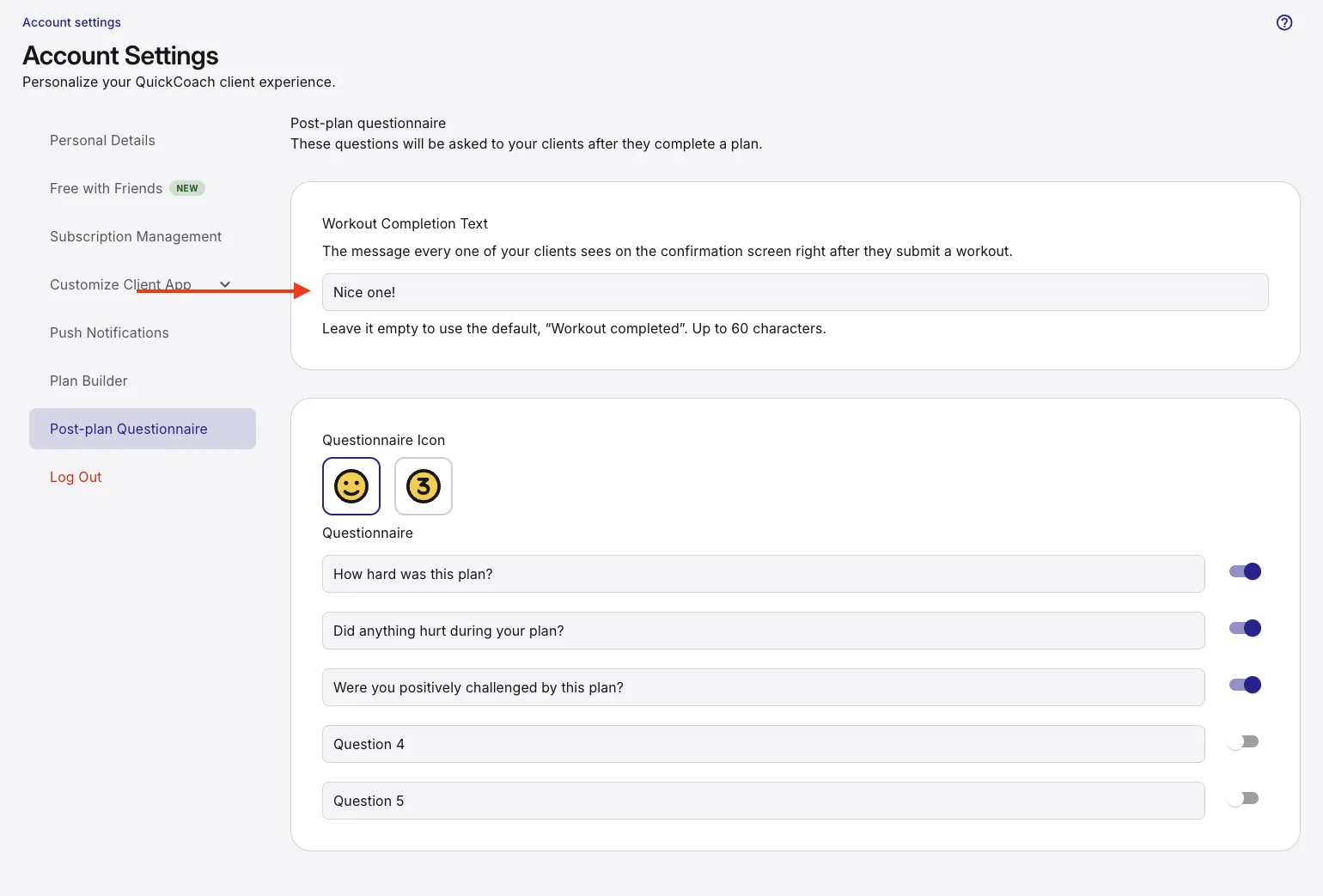
You will find it in Account Settings, under Post-plan questionnaire, in the Workout Completion Text field. Type your line, up to 60 characters, and it saves on its own. Leave it empty and clients see the default, "Workout completed". It is a Pro setting, so Free coaches, and any Pro coach who never touches it, see the default.
What You Get, by Plan
Both of these are Pro features, and both sit on top of tools that already work. Adding a client by hand and running Client Groups are the same as ever.
| You are on | What you get | What you pay |
|---|---|---|
| Free | Add clients yourself and coach up to 20 of them, no time limit. No group sign-up links, and clients see the default "Workout completed" message after a session. | $0 |
| Pro | Share a sign-up link for any client group so new clients join it themselves, then bulk assign plans and templates to the whole group. Write your own workout completion message. Plus the rest of Pro: branded client app, branded emails and printouts, push notifications, Training Insights, unlimited clients. | $39/month, or $32.50/month on annual billing ($390/year) |
If you are already on Pro, both features are switched on in your account now, with nothing extra to pay. Trialing and grandfathered Pro coaches count as Pro here, the same flat gate the nutrition and habit tracking release uses. For the full rundown of what Pro includes, the QuickCoach Pro features and pricing guide covers every feature in detail.
Group coaching is one of the models QuickCoach handles without charging you more as the roster grows, because Pro is a flat unlimited-client price rather than a slider that climbs with client count. If you are still weighing up where to start, the free coaching software comparison for 2026 is the honest place to begin.
Frequently Asked Questions
How do I onboard a whole group of clients at once in QuickCoach?
Open the client group you want people to join, copy its invite link from the bottom of the group edit screen, and share it. Anyone who opens the link fills in their name, email and phone, and lands in your workspace already inside that group. Once they are in, you use the existing bulk assignment to give the whole group their plans and templates in one action.
Can my clients onboard themselves into a group?
Yes. Each client group has its own sign-up link, sometimes called a group onboarding link. Share it and clients enter their own details to join that group, with no typing from you. It suits group packages, sports teams and squads where people sign up in batches rather than one at a time.
Can I run an online challenge or bootcamp with a group in QuickCoach?
Yes. Make a group for the challenge, share its sign-up link so entrants onboard themselves, then bulk assign one program to the whole group when the intake closes. It works the same way for a 4, 8 or 12 week challenge, a bootcamp, or a sports team you take on in one intake.
Does a client sign-up link assign plans automatically?
No. The link only creates the client and adds them to the group. Nothing is assigned automatically. That is the point: once new members are in the group, you use Client Groups bulk assignment to send plans and templates to everyone at once, on your schedule, not the moment they sign up.
Do I need QuickCoach Pro for group sign-up links?
Yes. Group self-sign-up is a Pro feature, checked the same way the rest of Pro is. If your Pro access lapses, links you already shared stop accepting sign-ups on their own, with nothing for you to delete. New sign-ups resume as soon as Pro is active again.
Can I turn off or reset a group sign-up link?
Yes. From the same section you can disable a link or regenerate it. Regenerating creates a new link and instantly kills the old one, so anything shared before stops working. Renaming the group does not change the link, and deleting the group switches its link off for good.
Can I change the "crushed it" workout completion message?
Yes, on Pro. Go to Account Settings, open Post-plan questionnaire, and edit the Workout Completion Text. Write your own line, up to 60 characters, so it suits the adults you coach instead of a stock "Crushed it". Leave it empty for the default, "Workout completed".
Line up your next intake
Make a group for your next challenge or term, copy its sign-up link, and drop it wherever your new clients will find it. They add themselves, you bulk assign when the window closes, and the typing is off your plate.
Create your group linkFeature details reflect the group sign-up links and workout completion message release in QuickCoach Pro, August 2026. Spot something that does not match what you see in the app? Tell us and we will fix it: support@quickcoach.fit.