
The admin around a challenge is the part nobody warns you about. You can write a good eight-week block in an afternoon and still lose the week before launch to typing names, sending the same plan sixty times, and answering one question in sixty separate threads. Learning how to run an online fitness challenge without losing that fortnight comes down to three jobs: design the block once, fill the cohort without data entry, and program everyone in one action.
This is the playbook for that workflow rather than a list of challenge ideas, and every screenshot below is the real thing: the group you create, the link you share, the assign dialog, and the roster you scan when the cohort goes quiet. It is the setup that makes a second round cheap to run.
Two parts of a challenge sit outside QuickCoach, and it is fairer to say so now than at the bottom of the page. There is no single link that takes an entry fee from a whole cohort, and there is no leaderboard that fills itself in from what clients log. Both are dealt with plainly further down.
What makes an online fitness challenge work?
Quick answer
To run an online fitness challenge, you need three things settled before launch day: a finished block you can reuse, a sign-up link that fills the group without data entry, and a check-in that reaches the whole cohort at once. Everything else is your programming.
The difference between a challenge that finishes with people still training and one that fizzles is rarely the programming. It is whether the plan arrives before the motivation does, and whether somebody is visibly watching. That second one is the hard one at scale. Sixty clients is sixty chances to notice that someone has stopped, and no coach reads sixty dashboards on a Tuesday night.
So the useful question when you set a challenge up is not what the sessions should look like. It is how much of the setup can be done in one action. Every repeated task multiplies by the size of the cohort: five minutes per client becomes five hours at sixty people, and then the same five hours again when the next block goes out.
There is also one structural gift in a challenge that a one-to-one roster never gives you. It has a start and an end, which makes the container temporary. A group built for this round can be emptied and used again for the next one, and the program behind it does not change at all.
Design the block once, then reuse it
The programming is the part you already know how to do, so the decision worth making first is where the finished block lives. In QuickCoach that is a Program Template, which is a folder holding a series of plans: build it once, then assign it to as many clients as you like, whenever you like. Keep a template to 100 plans or fewer and it stays quick to open and scan.
A workable shape for a challenge template is one plan per week plus one check-in per week, with the deload or the test week already written into it. Putting the check-in inside the same template matters more than it sounds. It means launch day is one assignment instead of two, and every week after that is one action instead of sixty.
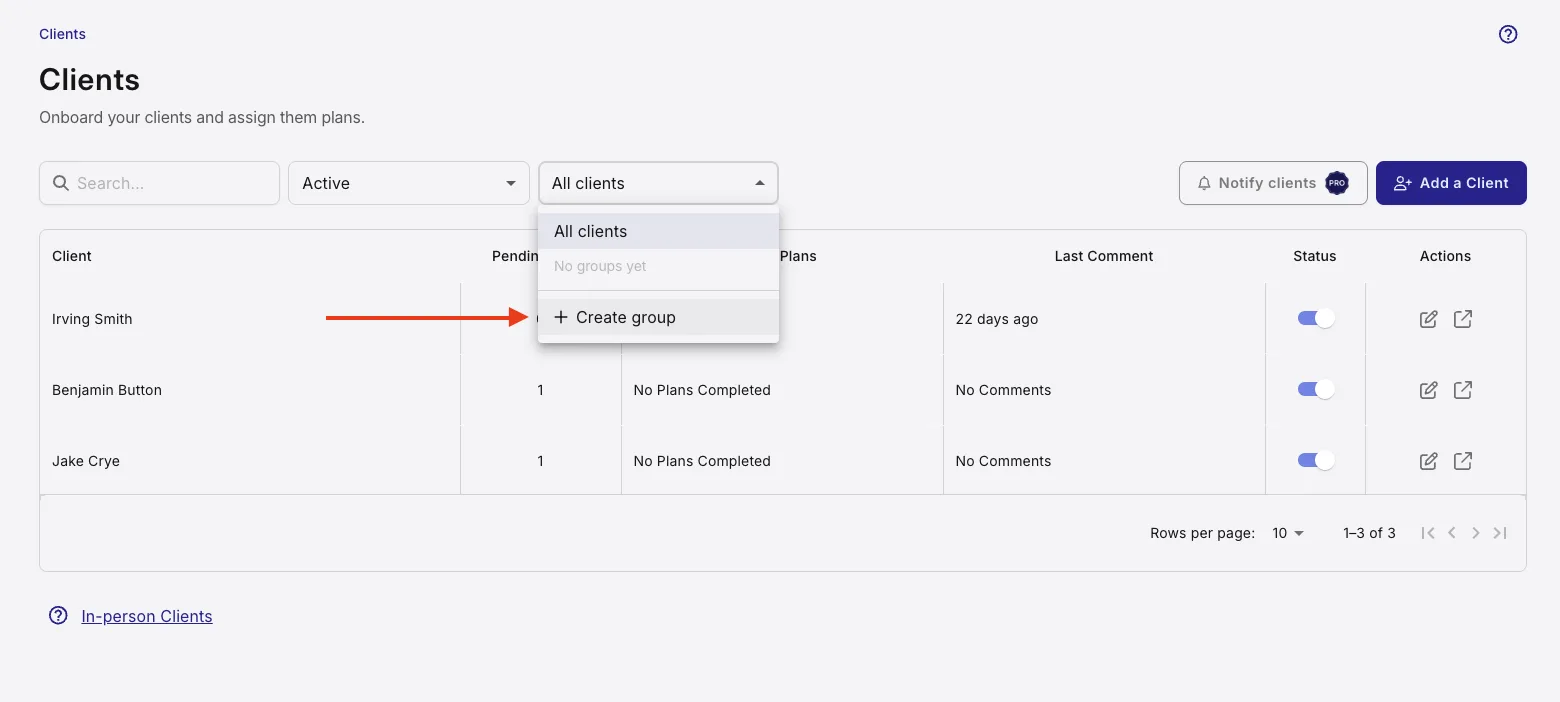
Before any of that, make the group that will hold the cohort. A client group in QuickCoach is a saved selection of your own clients with a name on it, and it lives inside the Clients page, so there is no separate groups area to keep tidy. Name it after the round rather than the people in it, so it still makes sense when half the roster has changed.
Fill the cohort without typing anyone in
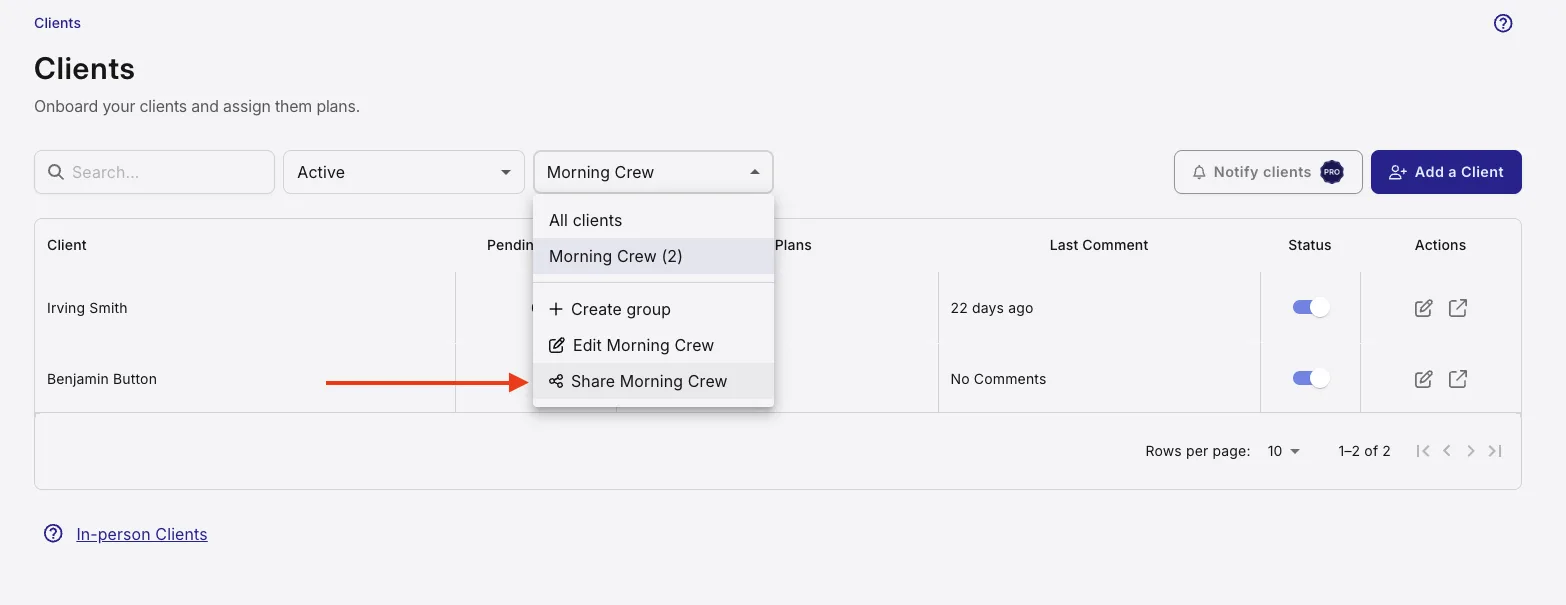
Every client group carries its own sign-up link, and that single link is what takes the data entry out of a challenge launch.
- Open Clients and open the Client Groups filter in the toolbar.
- Create the group, or select the one you already have.
- Open the filter again and choose Share [group name].
- Choose Copy invite link.
- Post it wherever your people already are: a message, an email, a social post or the link in your bio.
What the client sees is a short mobile page with your name on it and the name of the group they are joining. The form asks four things and requires three of them: first name, last name and email, with phone optional. There is no password to invent and no app to install first. They tap Join group, read a one-line confirmation, and never see your dashboard or anyone else in the group. Nothing private travels in the link either. It identifies you and the group with a random token rather than your account details.
On your side, the sign-up arrives as an email headed "A new client joined [group name]" with a View client button that opens their profile. No plan is assigned at that moment, and that is deliberate. The link has one job, which is to put the right person in the right group.
For the half of your recruitment that happens in a room
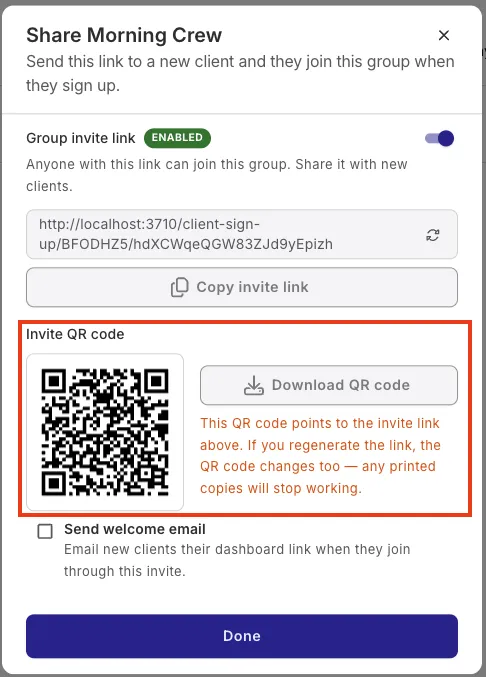
If some of your intake is face to face, download the group's QR code from the same Share screen and put it on a poster, a slide, or your own phone at a taster session. It points at the same link, so it behaves the same way. Disable or regenerate the link and any code printed from it stops working, which is worth knowing before one goes on 200 flyers.
Welcome them while they are still keen
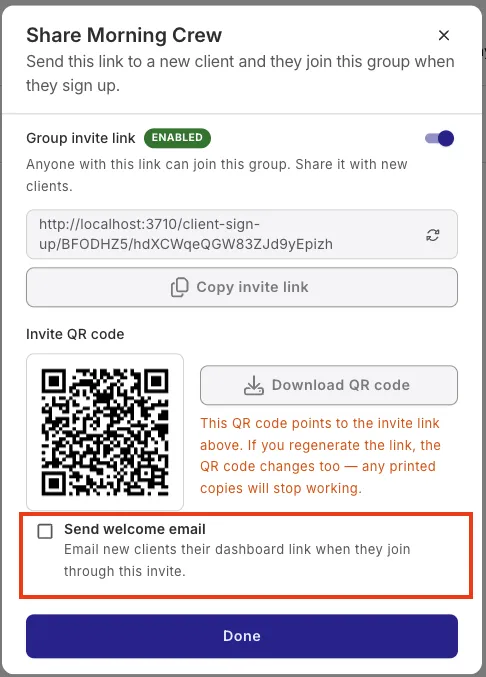
One checkbox on that screen, Send welcome email, mails new joiners their dashboard link the moment they sign up, so they can open the app while they are still enthusiastic rather than waiting to hear from you. It is off by default and set per link, so you can leave it off for a group you would rather greet yourself. The message itself is the standard client welcome email, and it can be rewritten to sound like you.
Two mechanics are worth knowing before you rely on this. Someone who signs up with an email that already has an account is not duplicated; they get a single message asking them to contact you instead. And group sign-up is a Pro feature, checked both when a link is opened and again when the form is submitted. If Pro lapses, every link you have shared quietly stops accepting people and starts again once it is active. To be clear about the free tier: adding clients by hand, and selecting several of them individually when you assign, both work on every plan, Free included.
One word on timing, because it decides more than any setting here. A challenge that fills in five days starts with momentum. A sign-up link left open for three weeks produces a cohort with no shared start line and a long tail of people who meant to begin. Open the window, push it hard, then close it.
Launch day: assign the whole cohort in one action
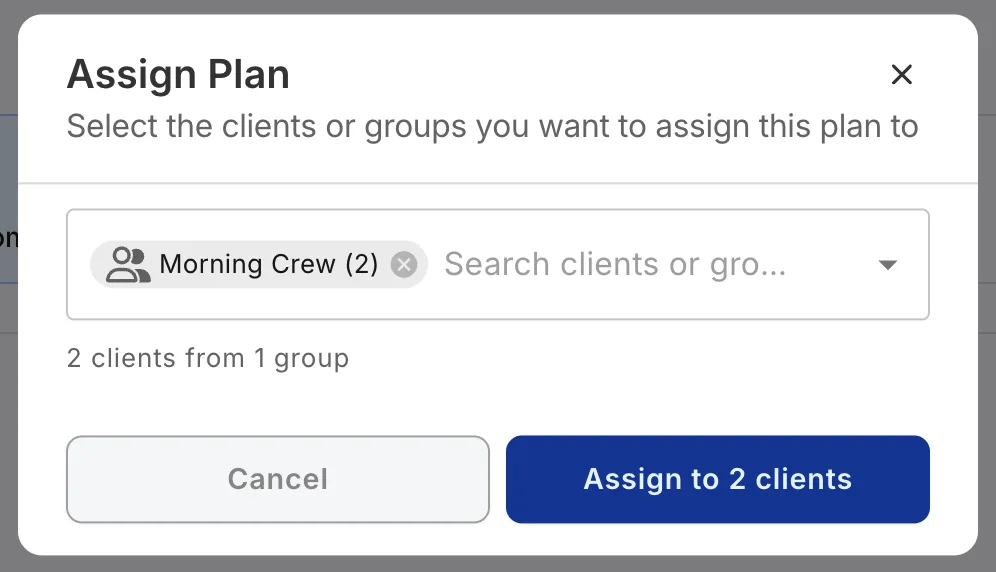
When the window closes, start the Assign action on the plan or the template exactly as you normally would. In the recipient picker, groups sit above individual clients and each one shows how many people it holds. Select the group, and the confirm button tells you the true number before you commit, counting to the person: Assign to 87 clients.
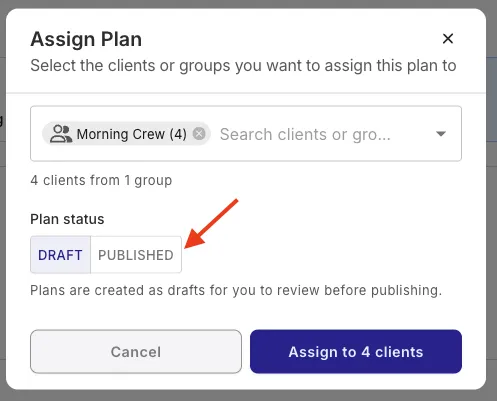
The Plan status toggle decides whether the block lands as a draft or goes live. Draft is the default and the right choice when each client needs individual work. For a challenge block that is finished and identical for everyone, choose Published, and the whole cohort has it immediately with nothing left on your list.
Two behaviours make it safe to lean on at cohort scale. Duplicates are removed for you, so a client sitting in two selected groups is assigned once and counted once. And the assignment is a snapshot: the group is read at the moment you confirm, so somebody who joins next Tuesday does not silently receive a plan you sent today. If you want a late joiner to have it, assign it to them as an individual, which takes the same few seconds. The group model itself, and why a one-to-one tool struggles with any of this, is set out in the delivery-model pillar for group coaching.
Then tell them it has started. On the Clients page, Notify clients opens the notification builder: send to every active client or to a subset you pick, and choose the Plan Assigned template or write your own. Titles run to 30 characters and messages to 120, which is a useful limit, because a notification that says nothing specific gets swiped. Push notifications are a Pro feature, and they are manual only. Nothing can be scheduled, so a launch-day announcement is a diary item rather than a rule you set once and forget.
Keep them in it: group check-ins and drop-off signals
Challenges rarely die because the clients lose interest first. They die because the coach loses the thread, and that is fixable with the same one-action habit you used on launch day.
A check-in in QuickCoach is built exactly like a workout, with each question added as a task the way you would add an exercise. Answer boxes hold up to 50 characters, so short answers work best: a rating from 1 to 10, a multiple choice, a yes or no. Build the weekly check-in once, keep it in the template alongside the training weeks, and assigning it to the whole group each week becomes a single action. That is the difference between a check-in rhythm that survives a cohort of sixty and one that quietly stops in week two.
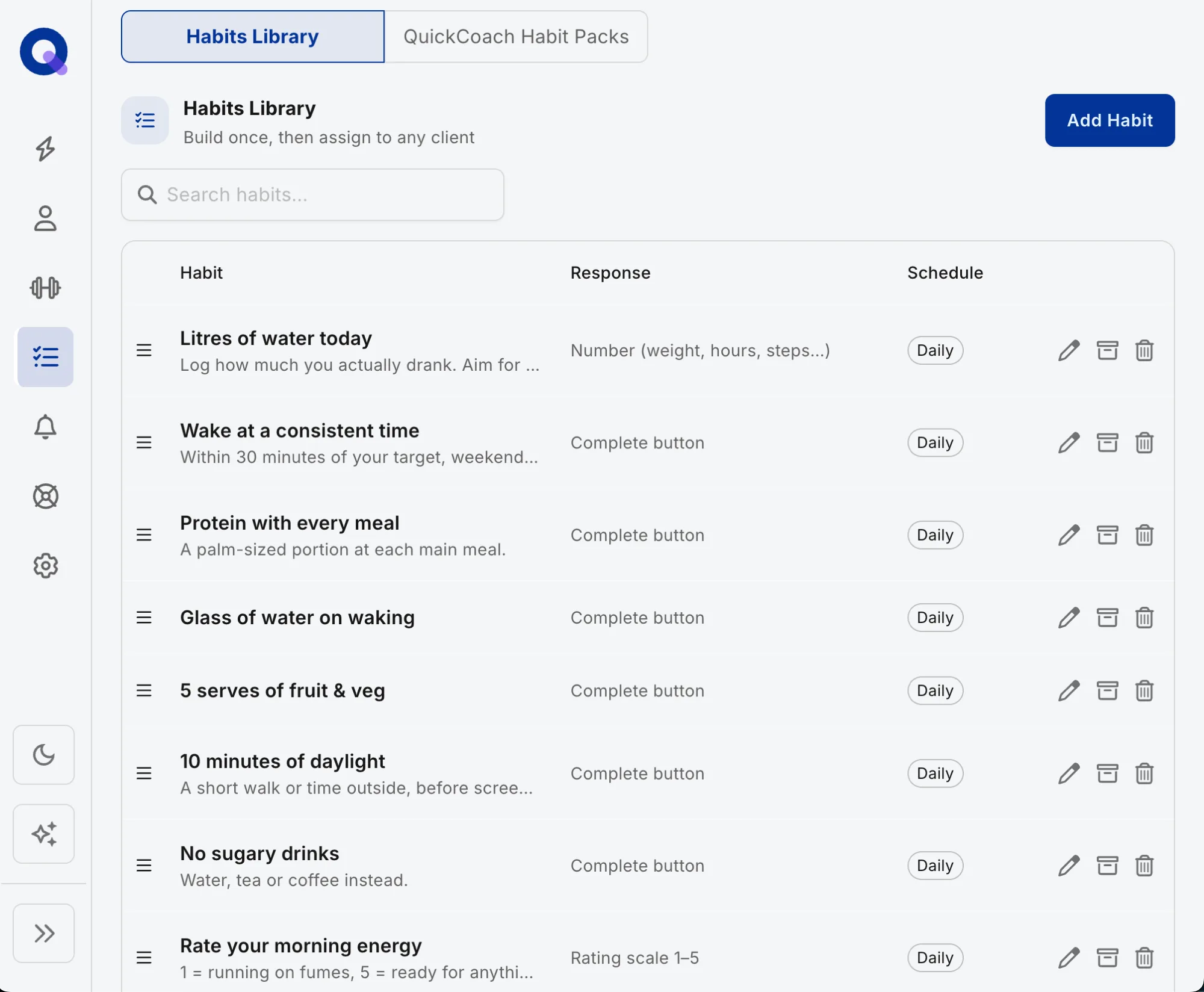
If the challenge is behaviour-led, which most are, habits carry more of the load than workouts do. On Pro, habit tracking gives you a rich check-in against the behaviours you assigned, with the full history on one screen. Over four weeks that turns "how was your week?" into a month of ticks you can read in a few seconds per client.
Knowing who to look at first is the other half of keeping a cohort moving. The Clients page sorts that out for you. Pending Plans counts what a client has waiting, so a low number means they are about to run out of programming. Last Plan shows how long since they completed one, which is the fastest way to spot somebody who has stopped. Last Comment shows how long since they left feedback, so nothing they have said sits unanswered. Give it a fixed half hour a week and work down the columns instead of reacting to notifications as they land.
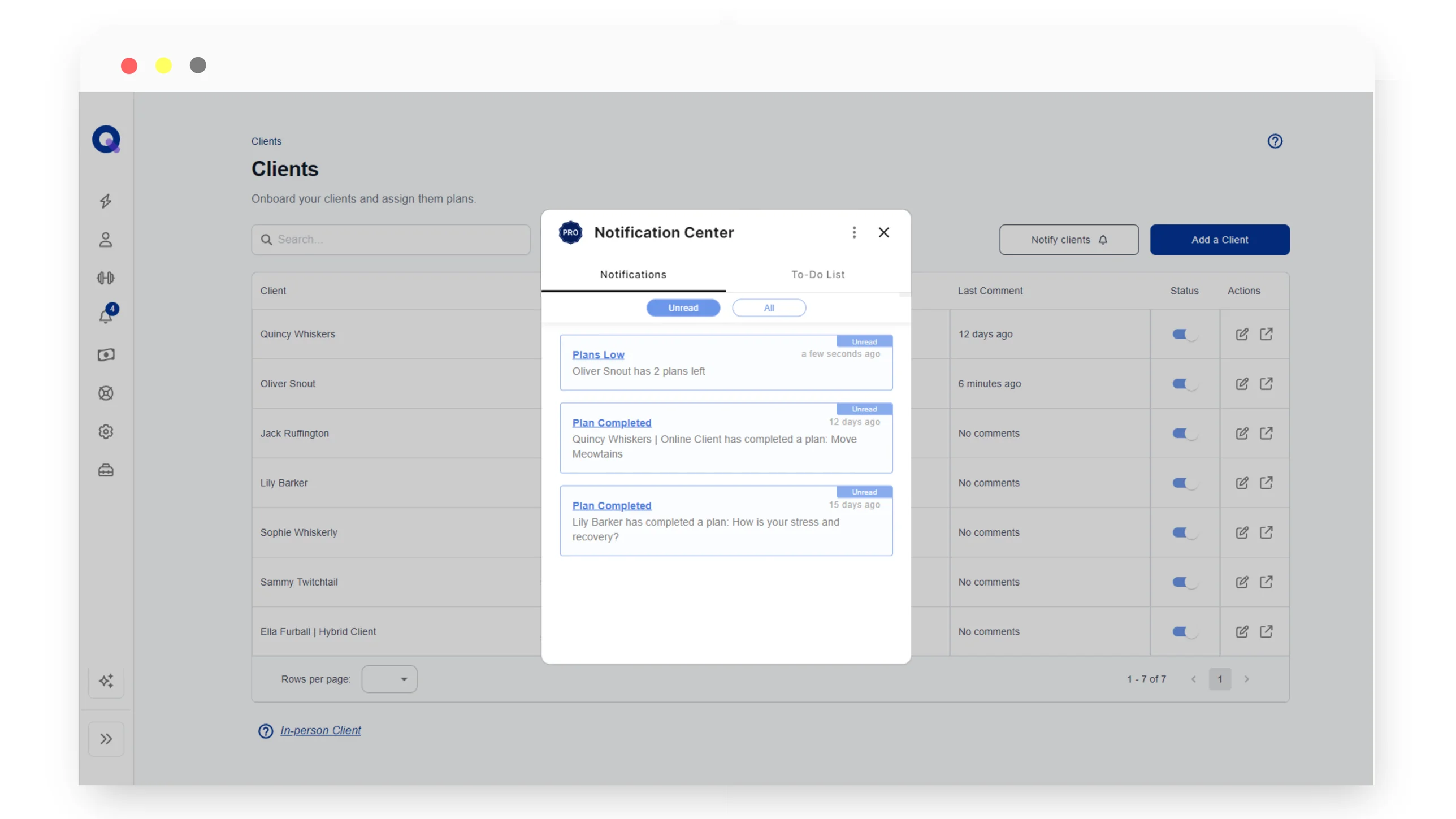
For the mid-point nudge, use Notify clients to a subset rather than the whole roster, and say something specific: the week four check-in is up, or the test week moved to Monday. The wider craft of the between-check-in touch, including what to send and what to leave alone, belongs to our guide to keeping online clients engaged between check-ins, which is also the right starting point for a coach running one-to-one clients.
Close the cohort and reopen the link for the next round
A challenge ends, and its admin should end with it. From the same Share screen, disable the link when your intake window closes and switch it back on when the next round opens. The URL does not change, so anything already shared keeps working. Renaming the group does not break the link either.
If a link has travelled further than you wanted, regenerate it. The old one stops working the instant you do, and any QR code printed from it dies with it. Deleting the group switches its link off for good, and it touches nothing else: your clients keep their accounts, their plans and their history exactly as they are.
For the next round, empty the group rather than starting over. Open the group's edit view, remove last round's members with the × on each name, and the same link is ready for a new intake under the same name, with the same template behind it. Because group assignment is a snapshot, the new cohort never inherits last round's block, which is the behaviour you want. If you would rather keep last round's roster intact as a record, make a fresh group instead. Either way you keep the setup you already did.
The admin you still need a separate tool for
Here is what QuickCoach does not do, and it decides whether this workflow fits you at all.
Nothing here runs a class timetable, and nobody turns up on an attendance register. There is no waitlist for a Tuesday 6am slot either. If the job that is genuinely breaking your week is scheduling sessions or tracking attendance, a coaching app is not the tool that fixes it.
There is also no cohort buy-in. If you want sixty people paying an entry fee before they start, there is no single challenge link that takes the money. Client Billing charges a client by card through a link sent from their own profile, one client at a time, so a mass entry fee is a different job entirely. The pattern that works is two links doing two jobs: a payment link from your own processor collects the fee and confirms who is in, then the group sign-up link gets those people into the app and into the block.
And there is no live leaderboard. What you can do is build one in the plan builder as an ordinary plan: a heading for each category, one shared variable carrying the result, and a task for each client and their score. Clients see it inside their plan and can react in the results box, which is enough for a bit of friendly pressure. You update it yourself, which is fine for a weekly or fortnightly scoreboard and no good at all if you wanted a board that refreshes as people log.
What you get instead are the two jobs that actually break a launch. One link to fill the cohort, one action to program it, and the same one action each week for the check-in. If you are weighing that against the rest of the category, the arithmetic across six platforms at 25, 50 and 100 clients is in our ledger on what group coaching software costs.
Frequently Asked Questions
Can I run an online challenge without adding every client by hand?
Yes. Each client group carries a sign-up link, so people enter their own name, email and phone and land in your workspace already inside the group. When the window closes you assign the block to the whole group in one action. Sign-up links are a Pro feature.
Does everyone in the challenge get the same plan or their own copy?
Their own copy. A group is a coach-side shortcut for selecting people, not a shared space, so each client in the challenge gets an ordinary private assignment with their own check-ins and their own history. Nobody in the group can see anyone else's plan, results or messages.
Can I run more than one challenge round with the same group?
Yes, and it is the easier way to do it. Disable the link to close one intake, empty the group, then switch the link back on for the next round. Because a group assignment is a snapshot taken when you confirm, a new intake never inherits the previous round's block.
How do I collect entry fees for an online challenge?
Outside the app, with a payment link from your own processor. There is no single link that charges a whole cohort, and Client Billing sends a payment link from each client's own profile, one at a time. Collect the entry fee first, then send the group sign-up link.
Is there a leaderboard for the challenge?
Not a live one that fills itself in. You can build a leaderboard as an ordinary plan in the plan builder, using a heading per category and one shared variable for each result, and clients see it inside their plan and can react in the results box. Keeping it current is a manual job you do yourself.
Do I need Pro to run a challenge in QuickCoach?
For the parts that scale, yes. Client Groups, one-action assignment to a group, group sign-up links, habit tracking and push notifications are Pro features. The free tier holds 20 active clients with no time limit, and selecting several clients individually when you assign works on every plan.
Published October 2026. A challenge is a fixed block, and a repeatable one, which is what makes its admin worth solving once rather than every round. Build the block in a template, fill the group with a link, assign it in one action, then read the roster every week. The mechanics of a group that onboards itself are covered in the group sign-up links release, and the assignment side in Client Groups and bulk assignment. If the roster is new to you altogether, start with onboarding a new online client, which covers the first fortnight that a challenge compresses into week one.
Pro is $39 a month, or $32.50 a month on annual billing at $390 a year, for unlimited clients, and the 14-day Pro trial is the honest way to test the workflow on a real cohort before you commit to it. Spin up your challenge sign-up link, start free. For everything else we publish on coaching practice and coaching software, the coaching guides index is the way in.