
One request has come up again and again from coaches who run group programmes. Here is a version we got almost word for word: "I do group coaching and I love using QuickCoach. Are there any plans for coaches to create groups that they can send workouts to versus having to send to each person individually? With a large group (80 to 100 people) it takes some time manually doing all the workouts."
Not a big deal, they said. It was a big deal. Sending one plan to 90 people, one tap at a time, is the kind of chore that quietly eats an afternoon. As of this month it is one action. QuickCoach Client Groups is live in Pro.
Quick answer
Client Groups lets you save a named selection of your clients, like "Morning Crew" or "Marathon Block", right inside your Clients page. Pick that group in the assign flow and every client in it gets their own copy of the plan in one action. Duplicates are removed automatically, the confirm button counts the real recipients, and it is core to Pro at $39/month.
What a Client Group Actually Is
A client group is a saved selection of your own clients with a name on it. "Tuesday 6am". "Beginners". "The comp team". It lives inside the Clients page you already use, so there is no separate section to learn and nothing new to manage.
The important part is what a group is not. It is a shortcut, not a new kind of plan. Picking a group when you assign is exactly the same as picking every person in it by hand. Each client still gets their own ordinary assignment, with the same notifications, scheduling and plan behaviour they have always had. Nothing about the client's experience changes. You just stop doing the selecting one name at a time.
A client can sit in as many groups as you like. Someone can be in "Morning Crew" and "Marathon Block" at the same time, show up when you filter by either, and still only ever receive a plan once when you assign to both together. That last point matters more than it sounds, and there is a whole section on it below.
Creating a Group From Your Clients Page
Groups live behind a single control in the Clients toolbar, sitting next to search and the status filter. It is labelled Client Groups. Here is the whole flow.
- Open Clients.
- Open the Client Groups filter in the toolbar, next to search and status.
- Choose Create group.
- Give it a name and pick the clients you want in it.
- Choose Create group to save.
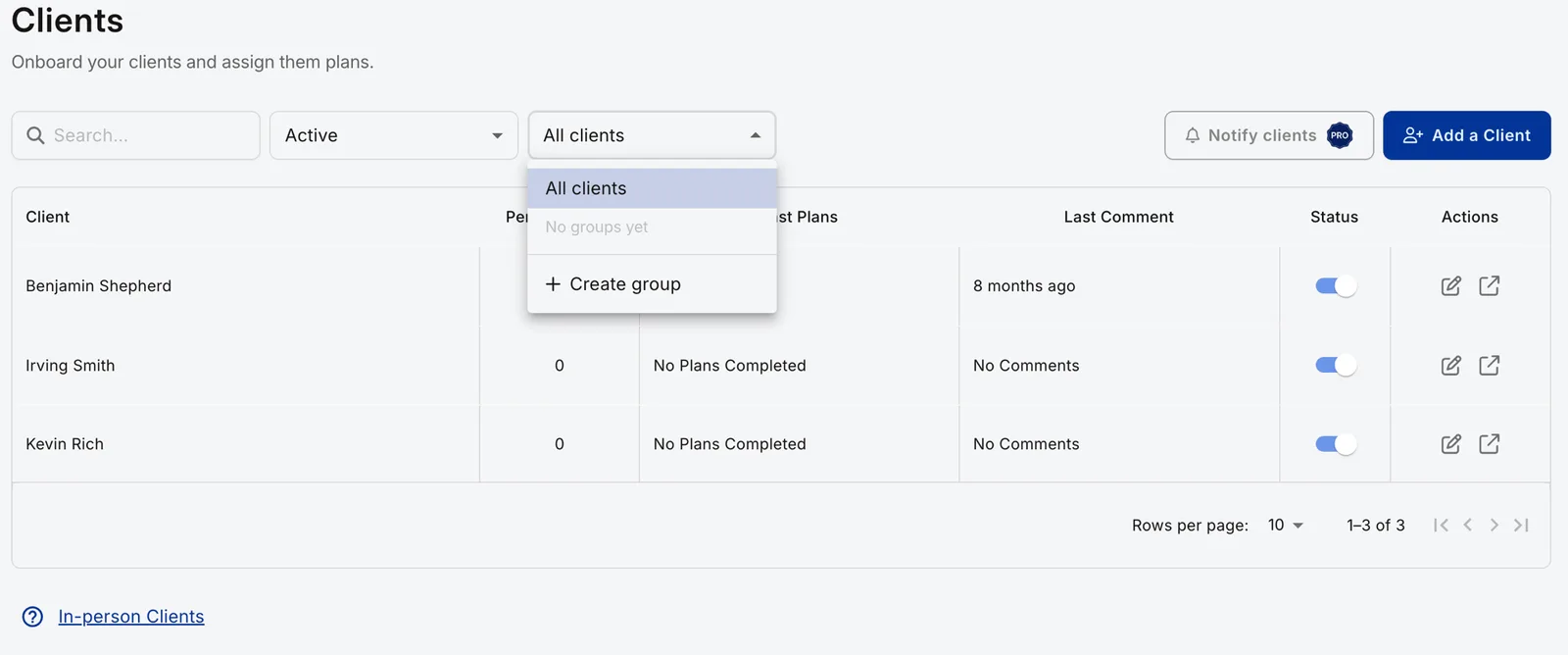
Your client list filters straight to the new group so you can see who is in it. A group needs only a name, so you can create an empty one and let people fill it: every group now carries its own sign-up link so new clients join the group themselves. You can also add people later. To change a group, select it in the filter, open the filter again and choose Edit, then add clients from the search box or remove them with the × on a name. The same screen renames a group and, with Delete group, removes it.
And to be plain about the scariest button on that screen: deleting a group deletes only the group. Your clients, their accounts and every plan you have already assigned are untouched. A group owns nothing. It is a way to point at people quickly, and deleting it just throws away the pointer.
The filter earns its place on ordinary days too. Choose a group and the client list you already use narrows to that group's members, with the group's name shown while it is active. Choose All clients to clear it. Search runs inside the filter, so searching while a group is selected searches within that group. If you have spent any time running check-ins across a full roster, filtering to one cohort before you start is a small thing that saves a lot of scrolling.
Assigning a Plan to a Whole Group
This is the part the coach with 90 clients was asking for. It hangs off the assign flow you already know, whether you are assigning a finished plan, a template plan or a selection of plans.
- Start the Assign action you already use on a plan.
- In the recipient picker, search for a group or a client. Groups appear above individual clients, each showing how many clients it holds.
- Select any mix of groups and individual clients.
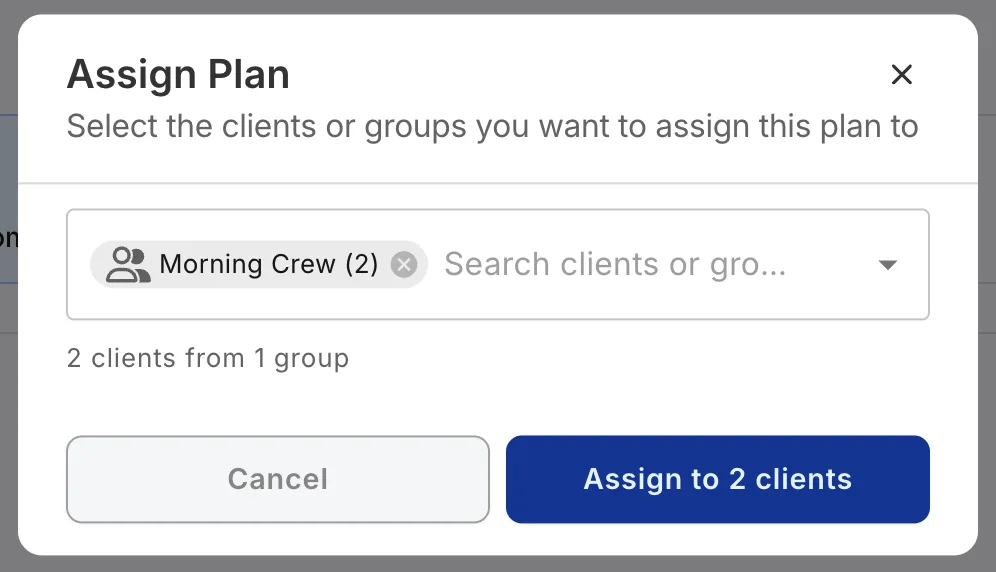
- The confirm button shows exactly how many clients will receive the plan, for example Assign to 87 clients.
- Confirm. QuickCoach assigns the plan to each client and tells you how many received it.
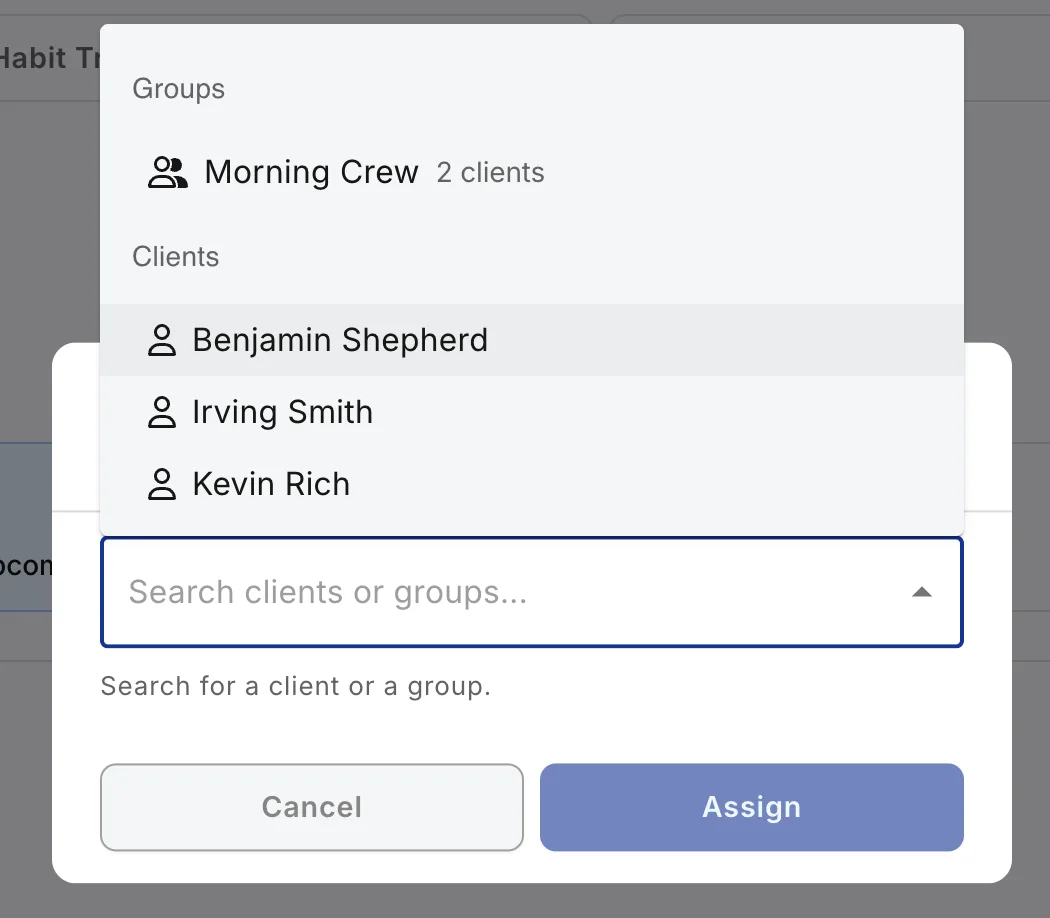
Worth saying clearly, because coaches ask: the recipient picker has always accepted more than one client. Selecting several people individually is not a Pro feature and never was. What Client Groups adds is the group as a single pick, so "everyone in Tuesday 6am" is one selection instead of eleven.
Duplicate Recipients Are Handled for You
Nobody is ever assigned the same plan twice in one action. If a client is in two groups you selected, or you picked them individually and they also belong to a group you selected, they are counted and assigned once. The number on the confirm button is the true count of unique clients, so what it promises is what the server actually does. You never have to sit there working out the overlap in your head. When a group's program is finished and the same for everyone, you can now assign it as Published so it goes live for the whole group at once, one of the later Client Groups improvements.
Why a Group Assignment Is a Snapshot
When you assign to a group, membership is read at that moment, and then the group steps out of the picture. Each client walks away with an independent plan of their own.
Two consequences follow, and both are the behaviour you want once you think about it:
- Adding a client to the group later does not hand them a plan you assigned before they joined.
- Removing a client from the group does not take back a plan they already have.
So a group is a live filter for who you assign to today, not a subscription that keeps pushing old plans at new joiners. If you do want a new member to have an earlier plan, you assign it to them, the same as you would for any one client. This is also why the feature needed no new plumbing on the client side. A group is expanded to plain client assignments at the moment you confirm, which is exactly why it behaves like a snapshot.
What You Get, by Plan
Client Groups is a Pro feature. Selecting individual clients when you assign is not, and never has been, so nobody loses anything on Free.
| You are on | What you get | What you pay |
|---|---|---|
| Free | Assign a plan to one client, or to several clients you select individually, exactly as before. The Client Groups filter shows a Pro badge and opens the upgrade options; groups cannot be created, edited or used to assign. | $0 |
| Pro | Create and edit named client groups, filter your list by a group, and assign a plan, workout or program to a whole group in one action, duplicates removed. Plus the rest of Pro: branded client app, branded emails and printouts, push notifications, Training Insights, unlimited clients. | $39/month, or $32.50/month on annual billing ($390/year) |
If you are already on Pro, it is switched on in your account now, no setup and nothing extra to pay. Trialing and grandfathered Pro coaches count as Pro here, the same flat gate the nutrition and habit tracking release uses. For the full picture of what the plan includes, the QuickCoach Pro features and pricing guide covers every feature in detail, and the step-by-step is in the Help Center article on using Client Groups.
Group coaching is one of the models QuickCoach handles without charging you more as the group grows, because Pro is a flat unlimited-client price rather than a slider that climbs with roster size. See the full case for group coaching at scale, or if you are still deciding where to start, the free coaching software comparison for 2026 is the honest place to begin.
Frequently Asked Questions
Can I send a workout to a group of clients at once in QuickCoach?
Yes. QuickCoach Pro now has Client Groups. Save a named group of clients on your Clients page, then pick that group in the assign flow and every client in it gets their own copy of the plan in one action. A coach with 80 to 100 clients in a group assigns to all of them with a single confirmation instead of one person at a time.
What happens if a client is in two groups I assign to at once?
Nobody is ever assigned the same plan twice in one action. If a client sits in two groups you selected, or you picked them individually and they are also in a group you selected, they are counted and assigned once. The number on the confirm button is the real number of unique clients who will receive the plan.
Do I need QuickCoach Pro to use Client Groups?
Creating, editing and assigning with Client Groups is a Pro feature. On the Free plan the Client Groups filter shows a Pro badge and opens the upgrade options. Selecting several individual clients when you assign is not gated and works on every plan, Free or Pro, exactly as it always has.
If I add a client to a group later, do they get plans I already assigned to the group?
No. A group assignment is a snapshot. Membership is read at the moment you assign, so adding a client to the group afterwards does not hand them an earlier plan, and removing a client does not claw back a plan they already have. If you want a new member to have an earlier plan, assign it to them.
Does deleting a client group delete the clients or their plans?
No. Deleting a group deletes only the group. Your clients, their accounts and everything you have already assigned to them are untouched. A group is a saved shortcut for picking people quickly, not a container that owns their plans.
Set up your first group this week
Pick the cohort you send the same plan to most often, your 6am crew or your current challenge group, and save it once. Next time that plan goes out, it is a single click for the whole group instead of a lap through your client list.
Open your dashboardFeature details reflect the Client Groups release in QuickCoach Pro, August 2026. Spot something that does not match what you see in the app? Tell us and we will fix it: support@quickcoach.fit.