Running a coaching business means holding a lot in your head at once. Which client needs a new program this week. Who left feedback you haven't reviewed yet. Which check-in you've been meaning to send for three days.
Most coaches manage this with a Notes app, a whiteboard, a sticky note on the monitor, or (if we're being honest) just trying to remember. None of those scale well once your client roster grows past a handful of people.
QuickCoach Pro includes a built-in to-do list that lives directly inside the QuickCoach app. It's simple by design, and that's the point. This article covers why it matters, how to use it, and how to build a habit around it that actually makes your day easier.
A quick note for anyone catching up: QuickCoach was acquired by Hale Health in December 2025, and new features like this one are part of the ongoing investment in the platform.
Quick answer
The QuickCoach to-do list is a Pro feature inside the Notification Centre. Log in at app.quickcoach.fit, click the bell icon in the left navigation, then open the To-Do List tab. Type a task, press Enter to add it, and tick the checkbox to mark it done.
Why a Coaching-Specific To-Do List Is Worth Using
You might already have a to-do list system that works for you. If so, great. But there's a specific advantage to having your task list inside the same tool you use to manage your clients.
Context switching is expensive. Every time you jump between apps (from your coaching platform to your notes app to your calendar and back), you lose a small amount of momentum. On admin-heavy days, that adds up. When your to-do list lives inside the QuickCoach app, the tasks you need to do are right next to the clients and programs they relate to. There's no translation required.
It also keeps your coaching admin visible. A task sitting in a general productivity app competes with everything else in your life. A task sitting in your coaching platform stays in context. It's specifically about your coaching business, and it's there every time you log in.
How the QuickCoach App To-Do List Works
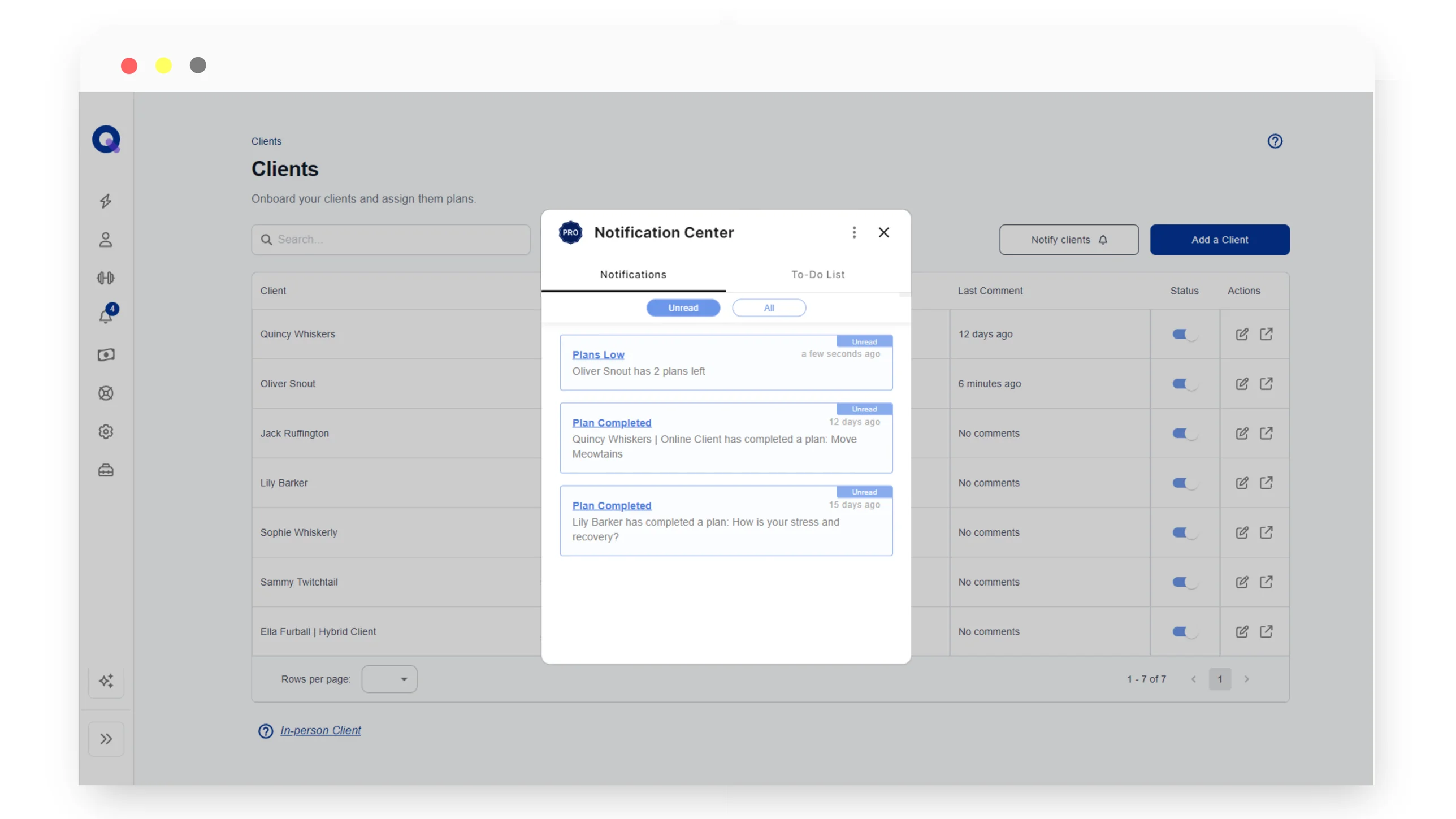
The to-do list is accessible through the Notification Centre inside the QuickCoach app. Here's how to find it and use it.
Opening Your To-Do List
- Log into the QuickCoach app at app.quickcoach.fit
- Click the bell icon (notifications) in the left navigation
- Click the 'To-Do List' tab at the top of the panel
You'll see two sections: To-Do and Completed. Any tasks you've added sit in the To-Do column. Anything you've checked off moves automatically to Completed.
Adding a Task
- Type your task into the 'Add new task' field at the top
- Click the + button or press Enter on your keyboard
That's it. The task appears in your To-Do list immediately.
Completing a Task
When you've done something, click the checkbox next to it. It moves to the Completed section automatically. If you accidentally check something off, just click the checkbox again to move it back to your active list.
How to Actually Get Value From It: Practical Tips
The feature itself is simple. The value comes from how you use it. A few approaches that work well for coaches:
Treat it as a client admin list, not a general task list
The QuickCoach to-do list works best when it's exclusively for coaching-related tasks. Keep your grocery shopping and personal errands elsewhere. When you open the QuickCoach app, you want to see only the things that relate to your clients and your programs. It keeps the mental load clean.
Good examples of tasks to put here:
- Review feedback from [client name]
- Build week 3 program for [client name]
- Send this week's check-in to [client name]
- Update task images for the upper body session
- Follow up with [client name], hasn't opened last plan
If check-in follow-ups dominate that list, it's worth tightening the check-in itself. Our guide to client check-ins that keep clients covers the questions to ask and how to respond so the follow-ups get easier.
Do a weekly sweep
At the start of each week, spend five minutes in your to-do list. Clear anything completed from the previous week, add the tasks you know are coming up, and prioritise what needs to happen in the next few days. Think of it like clearing your desk before you start work. It takes a few minutes but the mental clarity is worth it.
Log tasks immediately when client notifications come in
QuickCoach Pro notifies you when a client completes a plan, skips a plan, or is running low on programs. When one of those notifications lands, rather than making a mental note to deal with it later, add it to your to-do list straight away. 'Build next block for [client name]' takes five seconds to type and means you won't forget about it mid-session with someone else.
This is the real power of having your notifications and your task list in the same place. The gap between 'I saw something that needs doing' and 'I logged it somewhere I'll actually see it' becomes almost zero.
Keep tasks specific and actionable
'Sort out clients' is a task that will sit on your list forever. 'Build 4-week strength block for [client name]' is a task you can actually do, and one that gets faster if you clone an existing block or start from a saved template instead of building from scratch. The more specific your tasks, the more satisfying the list becomes to work through, and the less mental energy it takes to figure out what you actually need to do when you sit down to work.
What the To-Do List Doesn't Do
Worth being upfront about the current limitations so you can plan accordingly.
- There are no reminders or due dates. The list is a checklist, not a project management tool.
- Tasks aren't linked to specific clients or plans. They're free-form text entries.
- There's no shared or team view. The list is personal to your account.
For most solo coaches, these constraints aren't a problem. The simplicity is actually an asset. If you're running a larger operation with multiple coaches or complex workflows, you'll likely want a dedicated project management tool alongside it. Still deciding whether Pro is worth it? Our roundup of the best free coaching software in 2026 walks through where the free tier ends and Pro earns its keep.
The Bottom Line
The best coaching admin system is the one you actually use consistently. For a lot of coaches, the barrier isn't knowing what needs to be done. It's having a reliable place to capture it that doesn't feel like extra work to maintain.
The QuickCoach app to-do list is that place for your coaching tasks. It sits inside the same tool you're already in every day, it takes seconds to update, and it keeps your client admin visible without competing with the rest of your life.
The feature is available to all QuickCoach Pro subscribers. If you're not on Pro yet and want access to the to-do list alongside the full suite of Pro features, you can upgrade at quickcoach.fit.
Frequently Asked Questions
Do I need QuickCoach Pro to use the to-do list?
Yes. The to-do list is a Pro-only feature. You can upgrade from inside the QuickCoach app at app.quickcoach.fit.
Can I set reminders or due dates for tasks?
Not at the moment. The to-do list is deliberately simple. If you need scheduled reminders, pair it with your calendar app for time-sensitive work and keep the QuickCoach list for your active coaching admin.
Can I share the to-do list with other coaches on my team?
No. The list is personal to your account. If you run a team, each coach has their own private list.
Does the to-do list sync across devices?
Yes. The QuickCoach app is cloud-based, so any task you add appears on any device you log in from.
Questions? Reach out at support@quickcoach.fit.