Most coaches who run their business on a coaching platform face the same silent problem: every time a client opens their app, they see someone else's brand. Not yours.
That changes with QuickCoach Pro. The QuickCoach app gives coaches the ability to build a fully customised client app, complete with their own name, logo, and colours, without hiring a developer, waiting for App Store approval, or paying per-user licensing fees.
New to QuickCoach? The platform was acquired by Hale Health in December 2025 and is now actively being developed again. Worth reading that story first if you're wondering about the company behind the product.
This guide walks you through exactly how to set it up. If you are still deciding whether a branded app is the right first step, our guide to personal branding for fitness coaches works through what to brand first, and the branded app is the answer for most coaches.
Quick answer
A custom branded coaching app puts your name, logo, and colours on the app your clients install, so it looks like your own product rather than the vendor's. With QuickCoach Pro it's built in at $39/month, set up in about five minutes, with no per-user fee or App Store wait.
What Is the Custom Branded App Feature?
When you're on QuickCoach Pro, your clients don't install the QuickCoach app. They install your app. What that looks like in practice:
- The app icon on their home screen shows your logo and your business name
- The splash screen when they open the app reflects your branding
- The colour scheme inside the app matches your brand colours
From your client's perspective, it's indistinguishable from a purpose-built app. From your perspective, it takes about five minutes to configure.
For the full walkthrough of what a client actually sees once they are in, from the first log-in to the weekly check-in, see our guide to what clients see in a coaching app.
Importantly, the app installs via the device's browser rather than the App Store or Google Play Store. This is intentional. It means instant availability, no review delays, and lower ongoing costs that QuickCoach doesn't pass on to you.
Device Requirements
Before getting started, it's worth knowing what your clients will need:
iPhone
- Browser: Safari
- iOS version: 11.3 or later
Android
- Browser: Chrome, Samsung Internet, or Brave
- OS version: Android 4.4 or later with Play Services
The app works globally. These are the only technical requirements your clients need to meet, and the vast majority of active smartphones meet them easily.
How to Set Up Your Custom Branded App: Step by Step
Step 1: Go to Account Settings
Log into the QuickCoach app at app.quickcoach.fit. In the left navigation, click the settings icon (the gear icon at the bottom of the sidebar).
Step 2: Open the Customise Client App Menu
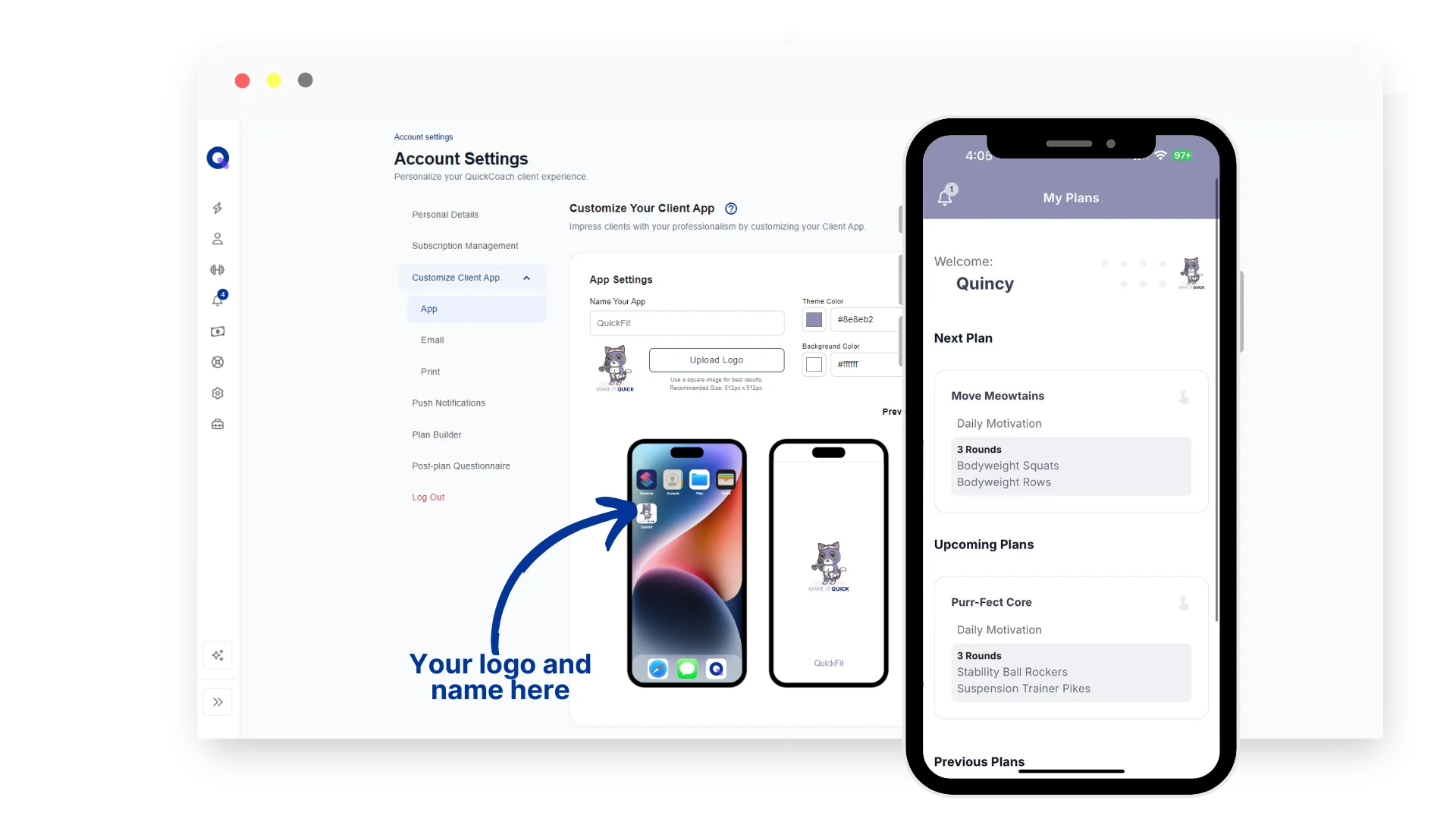
Inside Account Settings, click 'Customize Client App'. This opens the customisation panel. Then click 'App' to access your app customisation options.
Step 3: Name Your App
Type your business name or chosen app name into the 'Name Your App' field. This is the name that will appear under your app icon on your client's home screen, so make it recognisable. Your business name works well here.
Step 4: Upload Your Logo
Click 'Upload Logo', then 'Browse' to select your logo file from your device. Your logo should be a square image, and PNG format works best. Once uploaded, you'll see a preview of how it looks as an app icon and on the splash screen.
Pro tip: if your logo has a transparent background, it'll look cleaner against whatever background colour you choose in the next step.
Step 5: Choose Your Theme Colour
Your theme colour is the primary colour used throughout the client-facing app. You have three ways to select it:
- Type in your hex colour code directly if you know it
- Click the colour box and use the colour slider to find the right shade
- Use the colour selector to pick from a visual colour wheel
Not sure what your hex code is? Upload your logo to an online colour picker tool. It'll identify the exact colour codes from your image so you can match them precisely.
Step 6: Choose Your Background Colour
The background colour applies to the app's splash screen and some background elements. The same three selection methods apply. Many coaches use white (#ffffff) or a very light neutral that complements their theme colour.
Step 7: Save and Launch
Review the live preview to make sure everything looks right. When you're happy, click 'Save and Launch App'. Your branded client app is available instantly, with no waiting period and no review process.
Two Style Approaches That Work
There's no single right way to style your client app. Two approaches sit at opposite ends of the spectrum, and both work well depending on who you coach.
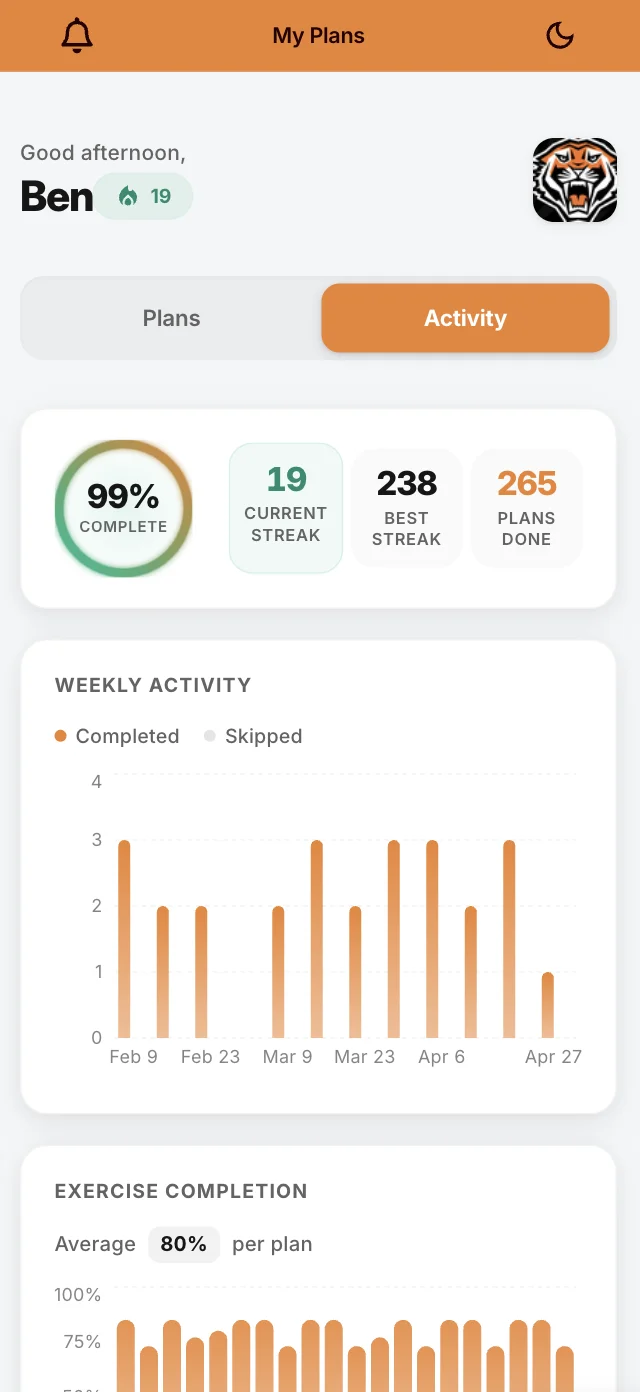
Soft style. Clean, minimalist looks for a calmer client experience.
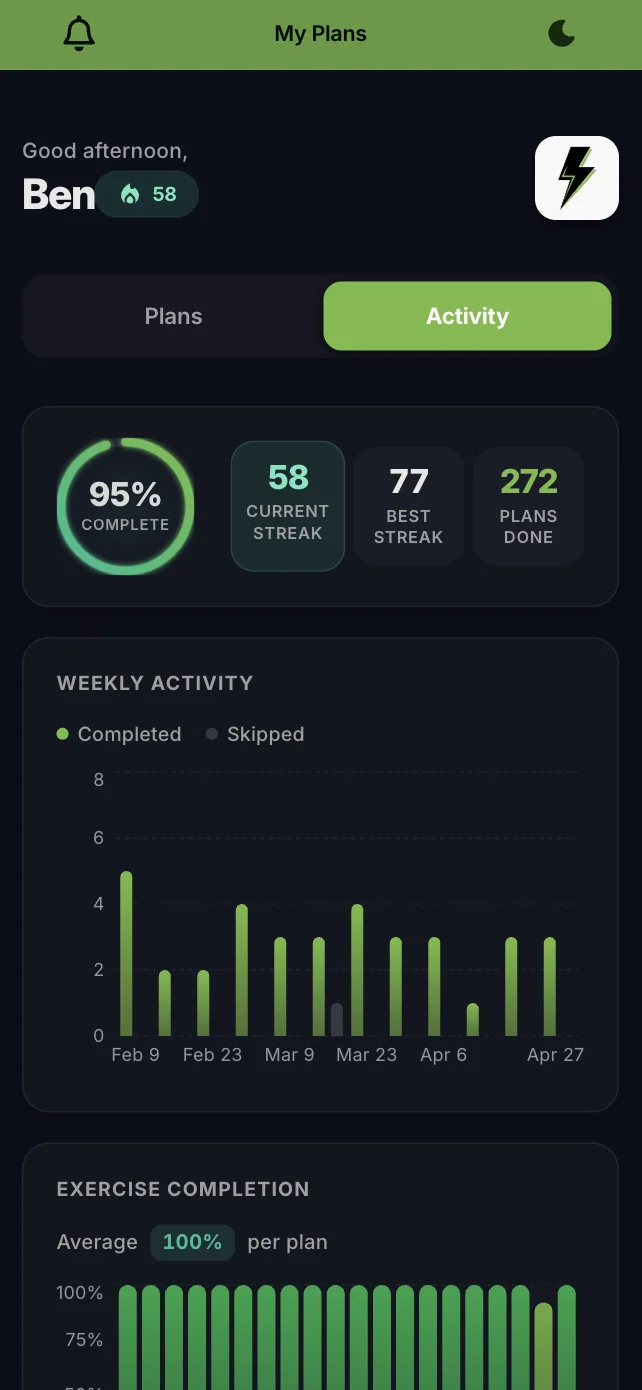
Bold style. High-energy palettes for clients who respond to intensity.
The point isn't which is better. It's that the app should reflect how you coach.
How Do Clients Get the App?
You don't need to do anything extra here. When your clients open their personal account link in a compatible browser, they'll automatically see a prompt to install your app. They tap through a short install flow and your app icon appears on their home screen.
For iPhone users, the install takes about 10 seconds via Safari. For Android, it's similarly quick through Chrome or Samsung Internet.
If you want to give clients a smooth onboarding experience, QuickCoach Pro also includes a customisable Canva installation guide template you can brand and send to new clients before they get started.
Can You Update the App Later?
Absolutely. You can change your app settings as often as you like. There's no limit. If you rebrand, update your logo, or want to refresh your colour scheme, just head back to Account Settings and make the changes.
One thing to note: when you update the app settings, existing clients will need to uninstall and reinstall the app for the changes to take effect fully. It's worth giving them a heads-up if you make a significant visual change.
Why This Matters for Your Coaching Business
Branding does real work here, and most of it is about trust. When a client installs an app with your name and logo on it, the subconscious message is clear: this coach is established, professional, and invested in their experience.
For coaches building a long-term brand, this is one of the most valuable features in the QuickCoach app. It costs nothing beyond your Pro subscription, takes minutes to set up, and every new client you onboard gets the full branded experience from day one. The same logic applies to the system-generated emails clients receive: more on why branded coaching emails matter if you want to see what the rest of the client-facing layer looks like on Pro.
How Branded Apps Are Priced Across Coaching Platforms
If you're weighing up platforms purely on the branded app, the difference is bigger than most pricing pages let on. Two terms get muddled constantly, so it's worth pinning them down first. A custom-branded app carries your logo and colours but still installs from a listing under the vendor's name. A full white-label app is your own listing in the App Store and Google Play, published under your business name. Coaches often pay for the first while expecting the second. The full distinction, and which one a coach actually needs, is covered in the branded app versus white-label app guide.
Here's how the branded client app is delivered and charged on the platforms coaches compare most often. Figures reflect publicly listed rates as of June 2026.
| Platform | Branded app cost | Included tier | Custom-branded vs full white-label |
|---|---|---|---|
| QuickCoach | No extra fee | Pro ($39/month, or $32.50/month billed annually) | Custom-branded client app (installs as a PWA, not via the App Store) |
| Trainerize | $169 one-time setup, plus $99/year Apple Developer fee | Add-on on Pro tiers (from $25/month monthly) | Custom branded app add-on |
| My PT Hub | $145 one-time, or $225/month for full white-label | Add-on on Starter and Premium; white-label bundled on Ultimate ($329/month) | Both: $145 custom-branded, or $225/month full white-label App Store listing |
| PT Distinction | No extra fee on Pro and Master | Pro ($59.90/month) or Master ($89.90/month); not on Basic | Custom-branded iOS and Android apps |
| TrueCoach | No extra fee for theming | Standard ($69.98/month) and above | Theming only (logo and colours inside the TrueCoach app, not a separate listing) |
The pattern is clear. QuickCoach and PT Distinction fold the branded app into a paid tier with no separate charge, while Trainerize and My PT Hub treat it as a paid add-on. TrueCoach offers theming rather than a distinct app. For the full cost picture at 10, 20 and 50 clients, see our guide to how much a branded coaching app costs. For a wider look at how these platforms stack up on price and features, see our best coaching app for personal trainers roundup, the detailed Trainerize pricing breakdown, and the My PT Hub pricing guide. For everything bundled into QuickCoach Pro, our Pro features and pricing guide has the full list.
Frequently Asked Questions
Do clients need to download anything from the App Store?
No. The QuickCoach app installs directly from the browser. Clients don't need to visit the App Store or Google Play Store.
Why can't I find the QuickCoach app in the App Store?
QuickCoach is built as a Progressive Web App (PWA), which installs via the browser. This approach is cheaper to maintain, has less downtime, and means your branded version is live instantly, without any store review process.
What if my client doesn't see the install prompt?
This usually happens for one of two reasons: the link opened in an in-app browser (for example, via Facebook Messenger) rather than Safari or Chrome, or a pop-up blocker is active. The prompt is just a helpful shortcut. Clients can still install the app manually using the 'Add to Home Screen' option in their browser's share menu.
Does the coach-facing app also show my branding?
No. The branding customisation applies to your clients' app only. Your own coach dashboard continues to display the standard QuickCoach interface.
Last updated June 2026. Branded app pricing across platforms verified against each vendor's official pricing page at the time of publication.
Ready to launch your branded coaching app? Upgrade to QuickCoach Pro at quickcoach.fit.
Need help? Contact the team at support@quickcoach.fit.